Sunday, October 3, 2010

Making your SharePoint 2010 applications ECM aware (Part 5 – Hold and Discovery)

Well I thought I had completed this series a month ago. However, when doing more research into the new features of SP2010, I discovered the “Hold and Discovery” site feature. This is a new and interesting feature in SP2010 and should be part of any ECM solution. My last post talked about the KnowledgeLake Viewer and stressed the importance of having the right tools to manage an “eDiscovery” process. In the last ten years “eDiiscovery” has become more important with many companies dealing with litigation. Courts can require companies to search and discover evidence within electronic documents. It is the responsibility of the company to put these documents on “hold”. “Holding” a document basically locks the document, preventing it from being edited, moved, checked out, or deleted. It is very similar to declaring a document as a record. Records and Holds are just about the same, except records can have different types of restrictions applied to them, for example, a record can be edited but not deleted. Also, it is easier to release holds than it is to un-declare documents as records. Declaring a record is more permanent, whereas, holding document by its nature is temporary.

A great blog post about the “Hold and Discover” feature in SP2010 describes the process.

Microsoft Enterprise Content Management Team Blog

SharePoint’s has expanded its “eDiscovery” capabilities in 2010, while it is now easier to search and manage documents to hold, there is still room for solution architects to enhance this feature. For instance, it would be nice to be able to put a whole document set on hold with one menu click. Possibly a new event handler could be added so that any new documents added to a document set are automatically put on hold. The discovery process could be substantially improved by providing better solutions for searching for documents, compared to the limited keyword searching currently available. For example,leveraging the richer FAST searching syntax to find documents . Another enhancement would be to enable record managers to refine search results and put the refined results on hold using KnowledgeLake Search.

Putting a document on hold

In order to allow your application to put a document on  hold, you will need to allow users to select from the available hold definitions. A SharePoint site is subject to not only the holds defined in it own site, but also its parent site. So when presenting this to the user you must give them a drop down list of available holds. The code in this post uses the Microsoft.Office.Policy assembly located in the 14 hive\ISAPI folder and the Microsoft.Office.Policy.RecordsManagement.Holds.Hold static class.

The following code builds a list of SPListItems that represent the hold definitions available to the a site. This is needed because both the SPListItem you want to hold and the SPListItem representing the hold you want to associate it with are needed.

public static List<SPListItem> GetAvailableHolds(string url)
{

    List<SPListItem> holdListItems = new List<SPListItem>();
    List<SPList> holdList = null;

    using (SPSite site = new SPSite(url))
    {
        using (SPWeb web = site.OpenWeb())
        {
            holdList = Hold.GetApplicableHoldsLists(web);
        }

        foreach (SPList l  in holdList)
        {
            foreach (SPListItem i in l.Items)
            { holdListItems.Add(i); }
        }

    }

    return holdListItems;

}

It is very simple to put a document on hold. All you need is the SPListItem of the document and the SPListItem of the hold. You can also set a comment.

public static void PutOnHold(SPListItem item, SPListItem hold, string comments)
{
    Hold.SetHold(item, hold, comments);      
}


Releasing a document from a hold

Of course if your application can put a document on hold you will want to have the ability to remove the hold. Very simple, basically the same as putting a document on hold but a different method.

public static void RemoveFromHold(SPListItem item, SPListItem hold, string comments)
{
    Hold.RemoveHold(item, hold, comments);
}

Determine if a document is on hold

It is very easy to determine if a document is on hold.

public static bool IsOnHold(SPListItem item)
{
    return Hold.IsItemOnHold(item);
}

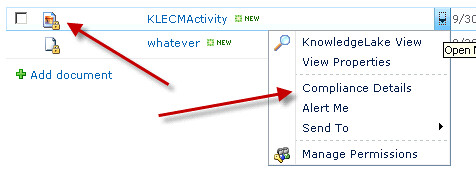
When a document is put on hold you will notice a lock icon next to the document icon displayed in the document library. Putting a document on hold or declaring it a record has an immediate effect. However, in the SharePoint UI you cannot tell whether the document is on hold, a record or both. You must select the “Compliance Details” context menu item to see the hold and record status of a document.
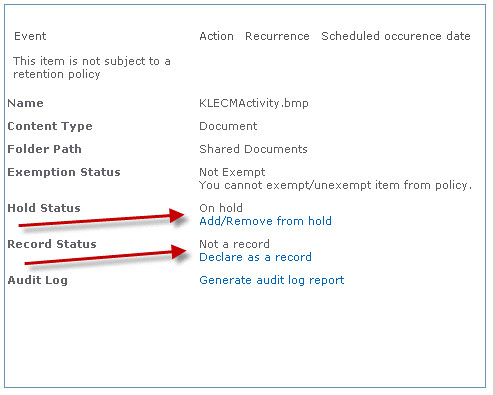
 

When a user clicks on one of these links, SharePoint internally sets a  bit field value of a built in field of the item. The bit field can be combined by using a bitwise OR operation so that the item can be both set as a hold or a record. The following code shows how this works.

public static void GetHoldRecordStatus(SPListItem item)
{
    bool record;
    bool hold;
    int result;

    try
    {
        object obj = item[Microsoft.SharePoint.Publishing.FieldId.HoldRecordStatus];

        if ((obj != null) && !int.TryParse(obj.ToString(), out result))
        {
            record = (result | 273) == 273;
            hold = (result | 4353) == 4353;
        }
    }
    catch (ArgumentException)
    {
        result = 0;
    }
}


The ability to hold and release documents is an essential feature that any ECM application should have. The Microsoft.Office.RecordsManagement.Holds.Hold class enables developer to accomplish this. This class has other methods to hold or release SPListItemCollections  which you can use in scenarios where batch holds are required. You cannot accomplish the same functionality with the Client Object Model. If you wish to call this code remotely you have to wrap the code within a web service deployed to the SharePoint farm.

I will be posting more about enhancing the identification process of “eDiscovery” in SP2010. This will take advantage of KnowledgeLake Search and Fast SharePoint Search.

Wednesday, September 22, 2010

KnowledgeLake Imaging for SharePoint 2010 (Viewing Documents from the SharePoint of view)

This is a continuing series of posts about KnowledgeLake Imaging for SharePoint 2010 a product which my team and I had been working on and is now been released  The product contains features a company needs to implement a quality document imaging system within SharePoint 2010. One of the most important parts of this SharePoint solution is the KnowledgeLake Viewer. Document Imaging requires a capable and powerful viewer, which can enable end users to perform many document based functions. KnowledgeLake Viewer is able to view multiple document formats including (Tiff, PDF, Png, Jpg, Bmp, MSG, Microsoft Word, Excel, and PowerPoint). Having one viewer to view multiple types of documents makes it easier for companies to manage the number of applications on users desktops. Just like our Search component, the viewer is built on Silverlight 4. This means the application does not have to be installed on the user’s desktop and will run in the browser.

Another benefit of one viewer is to make “digital forensics” much easier. “digital forensics” is a branch of forensic science which deals with discovery of court evidence residing in digital format, for example, any electronic document. In the last ten years “e-discovery” has become more important with many companies dealing with litigation. Courts can require companies to search and discover evidence within electronic documents. The KnowledgeLake Viewer makes the process easier by not requiring users to have install multiple applications and switch between them to view the documents. “e-discovery” is more efficient by leveraging KnowledgeLake’s more exact searching and multiple document viewing. Also, once a document is identified, the KnowledgeLake Viewer allows users to declare the document as a “record” allowing the company’s record retention policy to take effect. In the next version the viewer will have the ability to apply a “legal hold” on the document within SharePoint.

Viewing

The viewer can be launched from several places in SharePoint. It can be started from the context menu of a document in a document library, from the search results of the KnowledgeLake Search Center , or from the search results of the KnowledgeLake Search Results web part. Launching the viewer displays the document in a separate browser window.


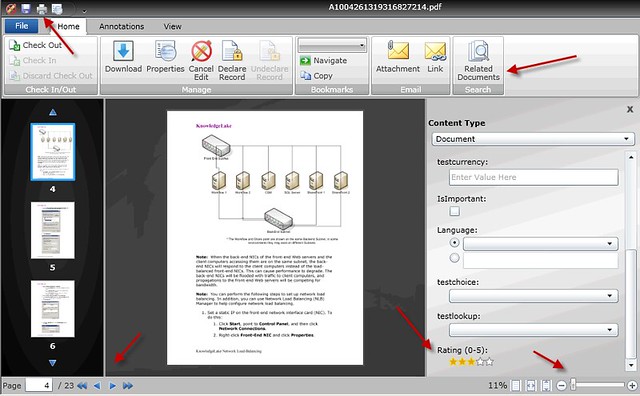
The KnowledgeLake Viewer does many things. First you can see the familiar ribbon where you have all the same functions that you get in SharePoint 2010 plus more. You can check in, out and discard a checkout. Also, you can download, view and edit properties (metadata), declare or un-declare as a record (records management). The bookmarks ribbon group lets users navigate documents using bookmarks.  Users can email the document as an attachment or as a link. Editing properties is done through the property panel. The panel supports all SharePoint field types including managed metadata with a metadata picker similar to SharePoint’s. Even the new social rating field is supported.

In the lower left hand corner navigation buttons are available, and the ability to view and navigate via thumbnails of the pages is also supported. The lower right hand corner contains controls to allow fine grained zooming and best fitting of the image. The upper left hand corner the tool bar contains an icon to allow for printing of the document.

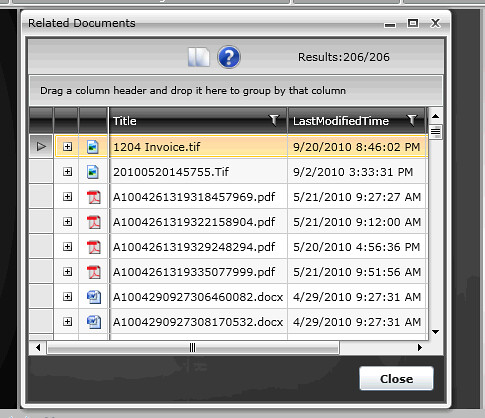
Finally, documents related by metadata can be searched for using the “Related Documents” button which will display a window with the KnowledgeLake Search Results. Here you can preview, edit and view related documents. The search results grid makes it easy to filter or group the related documents.


Annotating

One of the mainstays of document imaging is the ability to annotate a document. The KnowledgeLake Viewer allows annotations of Tiff and PDF files. The ribbon is logically laid out by grouping the annotation functions in its own ribbon tab. Standard annotations are available like sticky note, stamps, line, solid rectangle, highlight, text and bookmarking. All fonts, colors, line thickness and stamp types are selectable. Remember, this is all done within the browser and Silverlight application.


Adjusting your View

I already spoke about being able page and adjust your view from the lower left and right hand corners of the viewer. However, the same functionality is available in the View ribbon tab. The image can also be rotated along with adjusting the size of the paging thumbnails. Users can streamline their view by hiding thumbnails and/or annotations.

Viewing multiple documents

If your using Knowledgelake Search you can select multiple documents and view them all.

Viewing documents side by side can be beneficial when trying to compare possible related documents. This helps the “e-discovery” process and records management. You can open the document in a separate window by clicking on the arrow in the upper right hand corner of the document window. You can also switch to a tabbed view by clicking on one of the documents tabs.


Clicking on the tile icon returns you back to the tile view.


Document Sets

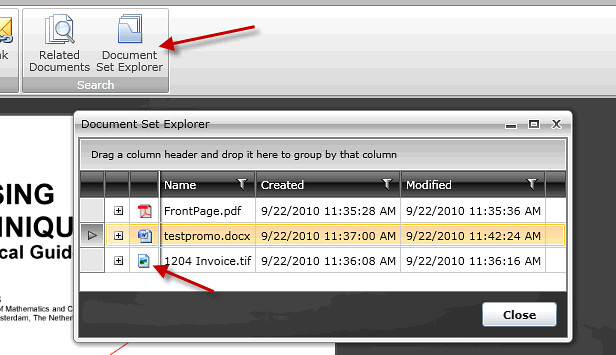
Document sets is a new feature in SharePoint and can be useful for a case management system. Document sets enable you to group documents along with a common set of metadata, and provide a way to have default documents created when a new document set is created. The KnowledgeLake Viewer allows for viewing documents within a document set. When a user opens a document that belongs to a document set the viewer will have a new ribbon button “Document Explorer”. Clicking on this button will display a new Silverlight window containing a grid similar to the KnowledgeLake Search results.

Clicking on the icon will load the document into another tab. Also, you can right click and from the context menu load the document in a separate window. The document set explorer gives the ability to view documents within document set side by side, and leverage the filtering and grouping features of the grid, which is especially useful when dealing with large document sets.

Many companies spend substantial resources to get documents into SharePoint, it only makes sense to have a capable document imaging system to leverage this investment. The KnowledgeLake Viewer gives you many sophisticated features to handle how you want to utilize SharePoint. Whether you are doing case management, e-discovery, digital forensics or records management the KnowledgeLake Viewer will make it easier.