Wednesday, November 22, 2017

Run Kubernetes Locally with Hyper-V on Windows Server 2016

Recently I have been working on a project which requires the use of Docker containers and the ability to scale out with services. Docker itself offers the ability to do this using Docker swarm. However, the development community overwhelmingly supports containerization using Kubernetes. Kubernetes is Google’s containerization platform that offers a rich set of features for scaling containerized applications. I like to do all my development on a multiple Windows virtual machines using Hyper-V. Some days I can have up to three virtual machines running with three different projects . Doing Docker development required Windows Server 2016 and I had no problem testing Docker swarm across multiple virtual machines. Trying to develop with Kubernetes locally on a Windows Server 2016 virtual machine was a different story. There is not a lot of information on how to accomplish this, in fact I could not come across any. Most of the information was doing it using Kubernetes Minikube on Windows 10 but not in a virtual machine. This post will give you all the steps you need to get Kubernetes Minikube to run on a Windows Server 2016 Hyper-V virtual machine.

Minikube

Google’s Minikube is the Kubernetes platform you can use to develop and learn Kubernetes locally. You can basically do anything with Minikube as you could if you were running it in Azure except load balance and scale out across nodes. Learn more about Minikube here. Minikube is run in its own virtual machine that runs Linux. So when you want to use it on a windows virtual machine you must enable Hyper-V. You are nesting virtual machines.  So here are the steps you need to take to get Minikube to run reliably on your Windows Server 2016 Hyper-V virtual machine.


Steps

Configure Nested Virtualization

The first thing you must do is enable nested virtualization on the Windows Server 2016 virtual machine you want to run Minikube on. You must do this from the host using PowerShell.

Set-VMProcessor -VMName  -ExposeVirtualizationExtensions $true 

Install Hyper-V Feature on the Windows Server 2016 Virtual Machine

Download the Latest Version of KubeCtl and Minikube for Windows

KubeCtl

Minikube

Copy both to the root C drive or the root drive you will be running PowerShell from. Rename the Minikube executable to Minikube. This will make it easier for you to execute Minikube commands in PowerShell.

Create a Virtual Switch for Minikube

Create a virtual switch to be used with the Minikube virtual machine using PowerShell

New-VMSwitch -Name VmNAT -SwitchType Internal


Assign an IP Address to the Virtual Switch Adapter

Get-NetAdapter "vEthernet (VmNat)" | New-NetIPAddress -IPAddress 192.168.137.1 -AddressFamily IPv4 -PrefixLength 24


Configure the Ethernet Microsoft Hyper-V Network Adapter

Internet Protocol 4 enabled
Hyper-V Extensible Virtual Switch disabled
Internet Protocol 4 has 8.8.8.8 as the preferred DNS server

Share this adapter with the virtual switch adapter setup for Minikube. This is found in the sharing tab.

Configure the Virtual Switch Ethernet Adapter

Internet Protocol 6 disabled

Reboot the Virtual Machine

Start Minikube

Start Powershell in administrator mode. Change the directory to the Root drive where Minikube.exe is located. Run the following Powershell.
 

.\minikube start --kubernetes-version="v1.8.0" --vm-driver="hyperv" --hyperv-virtual-switch="VmNAT" --v=7 --alsologtostderr

If all works you will see the message “kubectl is now configure to use the cluster”

To make sure all is working execute the following powershell


.\kubectl get pods --all-namespaces

If all is working you should see something like this.

Minikube and Windows Containers

So once this is all up an going you should be happy. Unfortunately, Minikube does not work with Windows containers yet. You can still run other linux containers to test and learn. Kubernetes and Windows containers are only supported in Azure. Another aggravation is when you either stop and restart Minikube or reboot the virtual machine, then Minikube stops working. It can no longer obtain an IPv4 address. This is from a recent bug in Windows Server 2016. You must disable and re-enable sharing the Ethernet adapter with the virtual switch adapter. Big pain. Below is a PowerShell script you can use at startup or just execute it after one of these scenarios. So I hope you find this useful. It took me a long time to get this to work consistently. I can only hope Minikube will support windows containers and this bug gets fixed.

# Register the HNetCfg library (do only once)
regsvr32 hnetcfg.dll


$m = New-Object -ComObject HNetCfg.HNetShare
$c1 = $m.EnumEveryConnection |? { $m.NetConnectionProps.Invoke($_).Name -eq "Ethernet" }
$c2 = $m.EnumEveryConnection |? { $m.NetConnectionProps.Invoke($_).Name -eq "vEthernet (VmNAT)" }
$config1 = $m.INetSharingConfigurationForINetConnection.Invoke($c1)
$config2 = $m.INetSharingConfigurationForINetConnection.Invoke($c2)
$config1.DisableSharing()
$config2.DisableSharing()
$config1.EnableSharing(0)
$config2.EnableSharing(1)


Monday, March 6, 2017

Tips for Better Content Searching in O365 Security and Compliance

Technorati Tags: ,,,

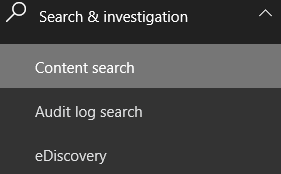
One of the new features in O365 Security and Compliance Center is the new Search and Investigation section. In this section you can do Audit log searches, eDiscovery cases and set up large content searches. Content searching allows an eDiscovery manager to search Exchange mail boxes, SharePoint Online sites and OneDrive for Business folders. This features enables large searches and allows manager to export the results up to 2TB. Quite impressive. I recently had the chance to use this feature and found a few problems with it. This post will give you some tips on how to use this feature more effectively.

Why Can’t I Use Custom Managed Properties?

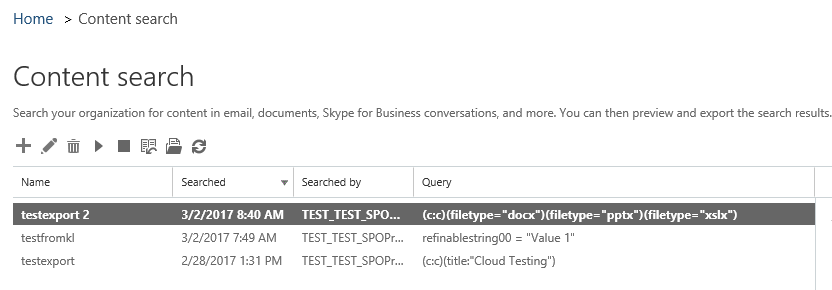
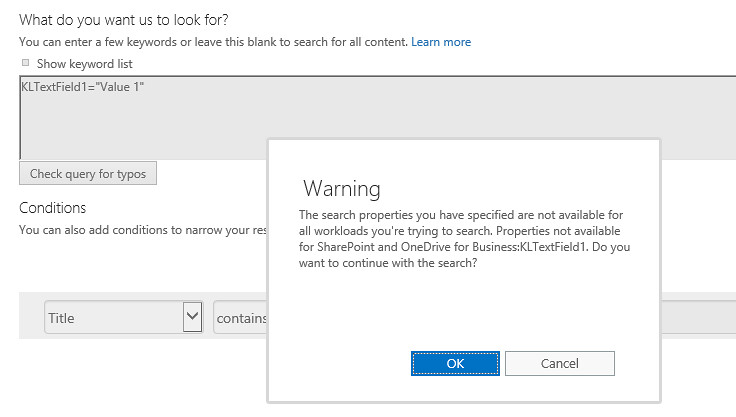
Many companies when migrating to Office 365 have content types that have custom site columns. These site columns get auto generated managed properties during the search crawl.  So you may want to do a content search using one of them from the content search UI. This UI allows users to create, edit, bulk edit and delete searches. When you create or edit a search you are offered the choice to put a whole KQL query or just some keywords in the large text box. You can also combine the keywords with some conditions. The condition builder only allows combining the conditions with AND and is limited to a select group of managed properties. I recommend not trying to combine conditions with a complete KQL query. The biggest problem is you get an error message if you try to use one of the custom managed properties.

If you click OK to continue,  then Office 365 will execute the query, but it strips out the part of the KQL query containing the forbidden managed property. In the case above the search returns everything but still lists the forbidden KQL in the Query.

Always Use the Refinable Managed Properties

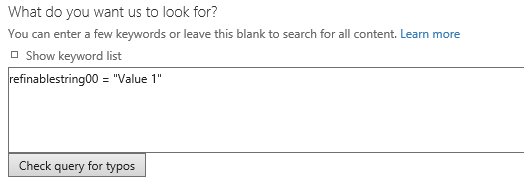
In order to use any custom managed properties make sure to map the corresponding crawled property to a compatible refinable managed property. Don’t bother with naming an alias to make your KQL queries more readable because they don’t work either. Using a built-in refinable managed property gets rid of the error message and the query executes correctly.

If your doing large content searches that you want to export the files then this is the tool for you. Unfortunately, this tool does not make it easy for companies to leverage their custom metadata to do targeted searching. Hopefully, this can be fixed soon.

Sunday, February 19, 2017

Multiple File Deployment for SharePoint Add-In Development with SPFastDeploy 3.7

Technorati Tags: ,,,,,

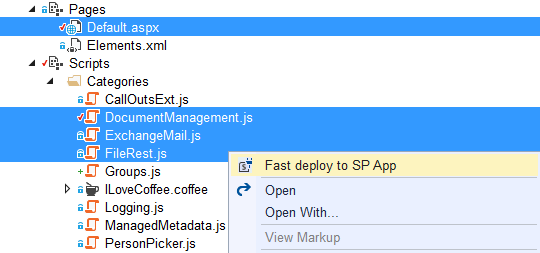
The SPFastDeploy Visual Studio extension allows you to make changes to a single file in your Add-In solution. Just right click on the file and have the changes automatically deployed without having to re-deploy the whole application. You won’t lose all your previously loaded list data and you won’t have to add your client app part back to the web part page. Saves a lot of time when developing Add-In model solutions.

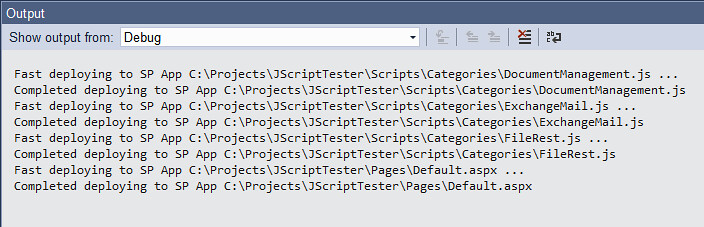
Well recently I was working on some large SharePoint Add-In projects and I needed to upgrade some JavaScript  libraries. I noticed how tedious it was to right click on the item in the solution explorer and click “Fast Deploy to SP App” for each upgraded file. So I added the ability to select multiple files and deploy to your SharePoint Add-In solution when developing. Make sure to keep the debug output window open to make sure all the files you selected were deployed. Enjoy saving more time when writing code.

Saturday, September 24, 2016

Better SharePoint Framework Code with SPRemoteAPI 1.5 VSCode Extension

I have been working with the new SharePoint Framework for the last month. This is the new Microsoft framework for SharePoint developers which makes it incredibly easily create web parts and web page applications using Typescript and other web technologies. I highly recommend switching to VSCode from Visual Studio when using this framework since it has greater flexibility for working with open source web technologies. The new framework relies heavily on the use of Typescript which gives you the ability to generate JavaScript code with compile time type checking along with intellisense to see available properties and methods while typing code.

SPRemoteAPI VSCode Extesnion

If you have ever worked with the SharePoint/O365 REST API you know that it is not easy to discover what types, methods and properties are available to you. When writing Typescript code you should always define your interfaces for REST responses and requests. The interfaces enable you to declare types which enables intellisense and type checking. Usually there are Typescript declaration files available for many framework libraries. The SharePoint REST API is not one of them. There are Typescript declarations for the SharePoint JavaScript Object Model but they are not kept up to date and do not match the REST API. It can be incredibly tedious to find REST example code and then go and create an interface for the request and response. Many developers will just create an interface and do some mapping from the REST response to a custom interface. This involves making the REST call and then examining the response to determine how to do the mapping.

SPRemoteAPI 1.5 Supports Creating Typescript Interfaces

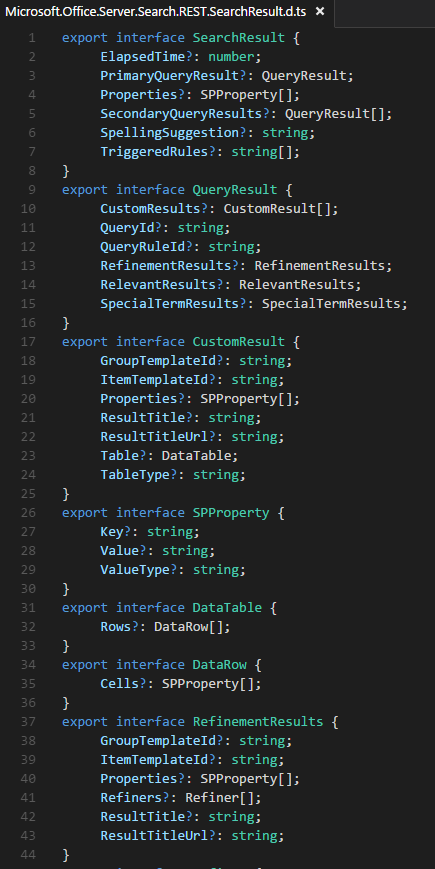
Well I got tired of the error prone and laborious process of creating interfaces for the SharePoint REST API. I wanted something that would generate the interface for me that would automatically and exactly map to the response or request for a REST call. Many of the responses and request objects have properties that expose other complex types, so I wanted something that would create all the interfaces required to handle a response and request. So all you have to do is invoke the extension, then search for the type and click the “Create Interface” button.

After clicking the button all the interfaces that are exposed by the this type are created and put into the virtual declaration file. Since this file is virtual, you can then just copy whatever you want from this to your own declaration file. The “Create Interface” button is only visible on types that have properties. All properties are optional giving you the ability to choose which properties you use.

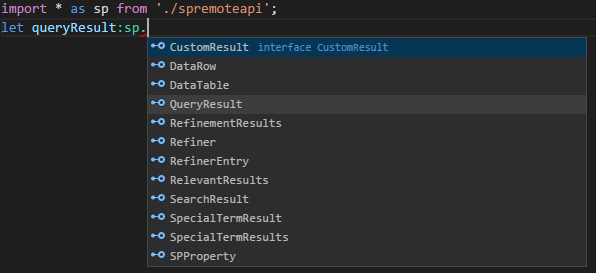
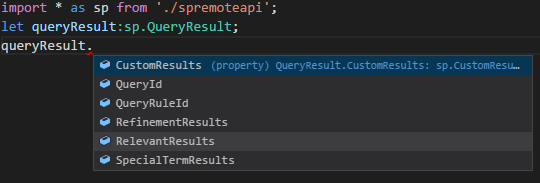
Once you have added this to a Typescript file and added an import statement you can now declare a type and get type checking along with intellisense for SharePoint REST response or request.

Get Productive with Intellisense and Type Checking

This feature will save you a lot of time having to research REST requests and responses. It will help you get up to speed on the SharePoint REST API and using the new SharePoint Framework. Enjoy.

Monday, July 4, 2016

Visual Studio Code Extension–SPRemoteAPI (SharePoint Office 365 REST API Discovery for the Masses)

Technorati Tags: ,,,

For everyone who has ever used the Visual Studio extension SPRemoteAPIExplorer one of the pain points is the requirement that you had have SharePoint installed on the same box as Visual Studio. Now you can get the same basic functionality of being able to browse and discover what is available in SharePoint and Office 365 REST and JavaScript API without having to have SharePoint installed. You can type in a namespace and browse the methods and properties. You can determine if they are available to be used with REST and JavaScript. You can also see what is new in SharePoint 2016. Finally when looking at specific methods or functions the extension gives the required POST bodies and response payloads, allowing the developer to easily copy and paste this into his code. You can get the VSCode extension here SPRemoteAPI in the Visual Studio Market Place. Oh did I mention it is FREE.

Using SPRemoteAPI Extension (Step 1)
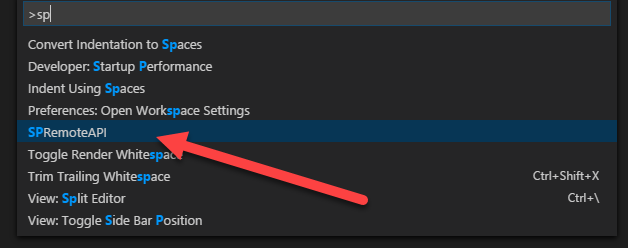
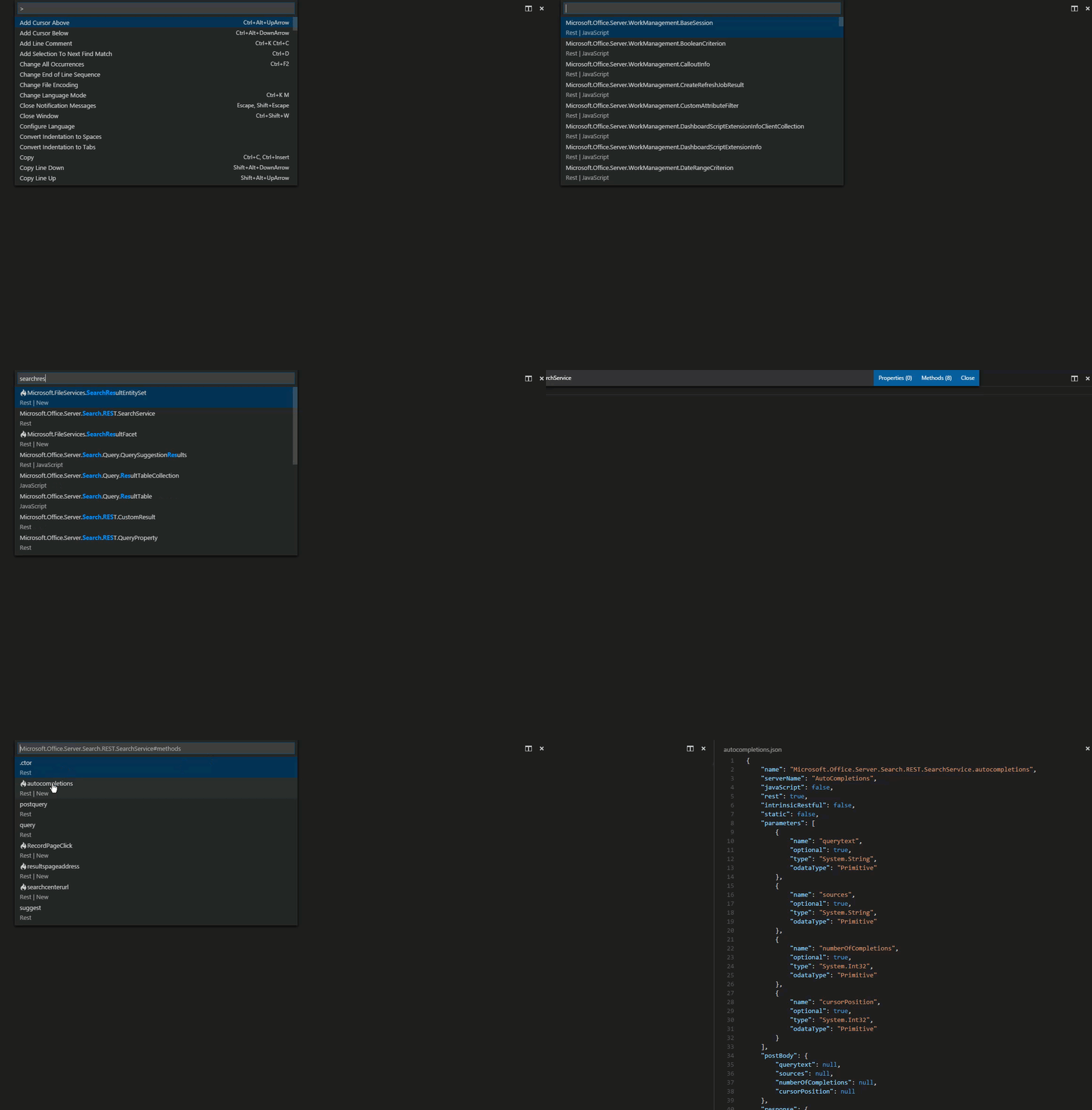
In VSCode just hit F1 and start typing SPRemoteAPI and you will see it appear in the drop down list.


Using SPRemoteAPI Extension (Step 2)
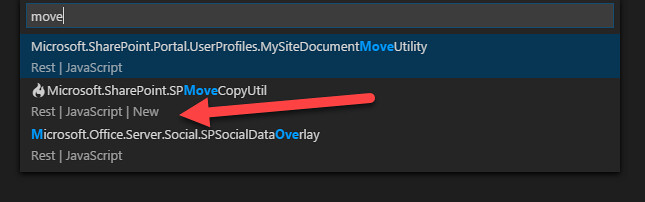
After selecting the SPRemoteAPI command you will be presented with all the available types in the SharePoint Office 365 remote API. You can start typing and the list will automatically filter as you type. The example below shows typing “move” and the list is filtered down to types with the word move contained in them. This list shows a github icon (flame) next to types that are new in SharePoint 2016. It also lists whether the type can be used in REST or JavaScript. Some types are not available for both.

Using SPRemoteAPI Extension (Step 3)

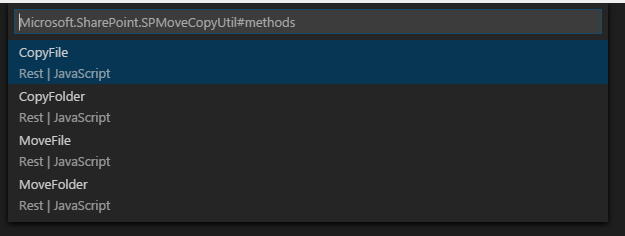
Once you selected the type you are presented a information dialog showing you the type along with options for displaying properties and methods. The options also shows you the number of each contained in the type.

Using SPRemoteAPI Extension (Step 4)

Select the methods options and you are presented a list of available methods to choose from.

Using SPRemoteAPI Extension (Step 5)

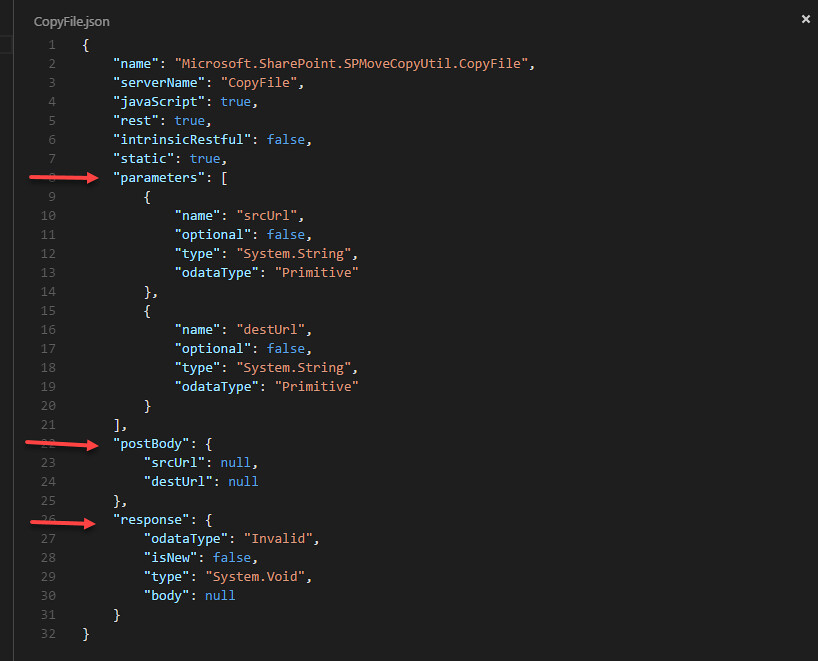
Choose a method and a new code window (virtual document) opened containing a JSON representation of all the method’s information needed to call it remotely using REST. It shows you the parameter types, required post body and response body. The post body can be copied into whatever REST calling framework you are using such as FETCH or JQuery. The response can be used to guide you in what to expect in the payload response from the call. This gives you ability to write remote REST calls without having to do all the extra experimentation to see what the call returns. Having both the body and response JSON templates will save you a lot of time searching on the internet.

What about properties?

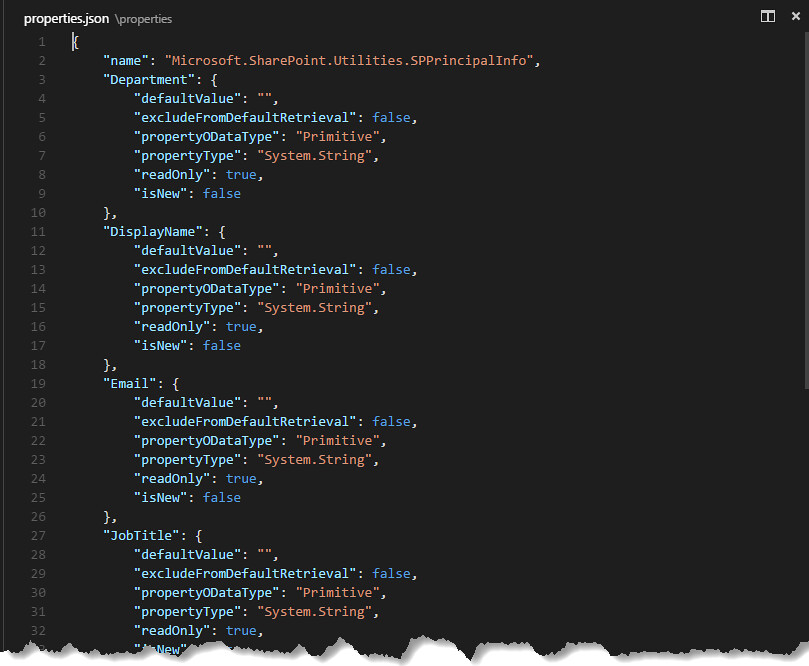
Below is example of the code window you are given when you select properties. It shows you all the available properties for the type and the information you need to determine what is available remotely from SharePoint Office 365.

SPRemoteAPI in Action


SPRemoteAPI VSCode Extension – SharePoint Office 365 REST Discovery at your fingertips

This Visual Studio Code extension was created to open up the SharePoint Office 365 remote API to the many developers who do not use Visual Studio to develop. This extension will run on non-windows environments and of course does not require SharePoint to be installed locally. You can now easily figure out what is available and how to call any SharePoint REST API without having to search and page through mounds of documentation. Enjoy being productive!

Thursday, March 31, 2016

Understanding SharePoint 2016 Remote API Changes (SPRemoteAPIExplorer 3.0)

Technorati Tags: ,,,

Well SharePoint 2016 has been released and you have no clue what new features are available from the remote API. There are a total 250 new types you can use and changes to an existing 86 types. This results in thousands of new properties and methods that are undocumented. You can now get started on understanding the changes with the updated SPRemoteAPIExplorer 3.0 Visual Studio extension. I have used this extension for years to find and discover new methods to call in the SharePoint 2013 remote API. If you have used it before you will know it can generate the Ajax REST method calls for you, create JSON for REST responses and payloads or create JSON object paths for deeply nested responses. Version 3.0 now gives you the ability to switch between SharePoint 2013 and SharePoint 2016 remote API’s. It also surfaces the complex types that are used as parameters and responses, this will give you a better understanding of the wide range of types that you need to know to code effectively against SharePoint On-Premises or Online. Finally, it gives you an option to see just the types that are new or have changed, which will make it easy to see and discover some of the great things that may make your coding life easier. Remember that the SharePoint 2016 remote API applies to both On-Premises and Online, but some methods may work only in SharePoint Online.

Easily Identify Remote API changes in SharePoint 2016

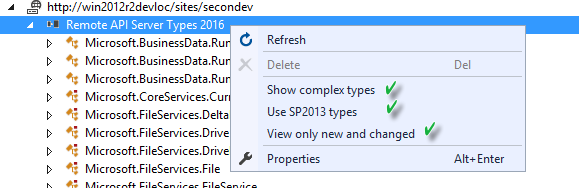
To easily find the new changes right click the top node to see the main context menu and select the “View only new and changed” menu item.

After clicking this menu item the explorer tree only shows types that are new or types that have changes. All new and changed features are identified with a “red dot” in their icons.

Show Complex Types used in the Remote API

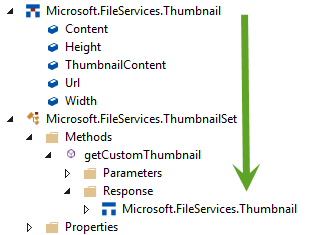
Clicking the “Show complex types” menu item will load all the complex types into the explorer. Typically these types are used as parameters and responses and contain no methods.

Discover if Methods are supported by REST

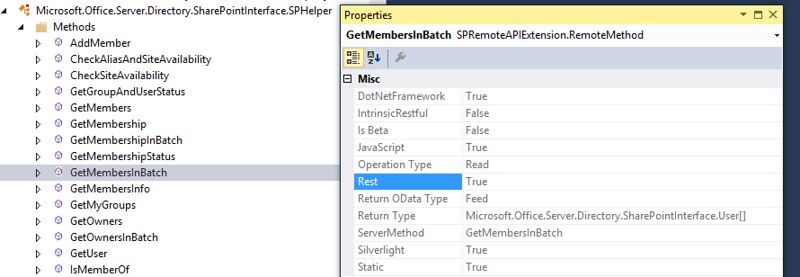
Remember that you can click on a method or any node and discover it’s capabilities. If you click on a method and view its properties you can see if the method is supported for REST, CSOM or JSOM.

Generate Ajax code for Methods

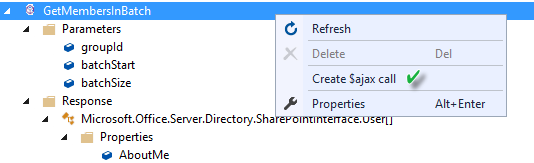
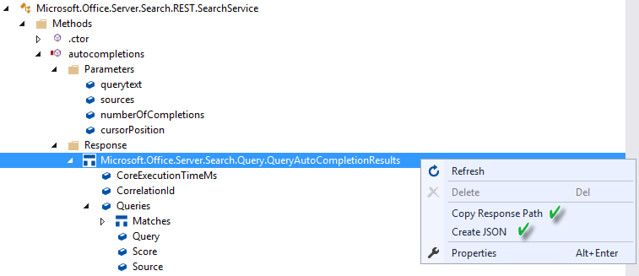
If you select the “Create $ajax call” context menu item for a method it will copy all the code including the JSON payload for the REST call into the clipboard. You can then copy and paste this into your code. You can also generate the JSON and response paths for method responses.

Visions for Visual Studio Code

There have been past complaints that this extension is dependent upon SharePoint being installed locally. SPRemoteAPIExplorer 3.0 is dependent only upon Visual Studio Office Tools, but the extension relies on the “SharePoint Server Explorer” tool to surface the API nodes. Unfortunately, this explorer will only work with SharePoint being installed. So I am currently working on a VS Code extension to surface this information. Unfortunately, it will not be as full featured as this extension but it will allow other developers to access this information. Another option would be to expose this information as a service.

Time to Catch Up on your API

SharePoint 2016 is released so you better start catching up. I hope this new extension will help you do that and become more productive. I plan on keeping this up to date as API changes are pushed to On-Premises. It would be nice to be able to get this information from O365 instead of waiting for the On-Premises push. Enjoy.

Thursday, January 28, 2016

What’s new in SharePoint 2016 Remote API Part 4 (Web)

Technorati Tags: ,,

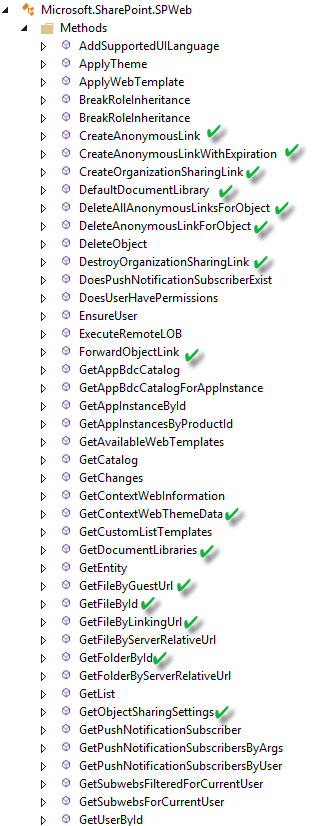
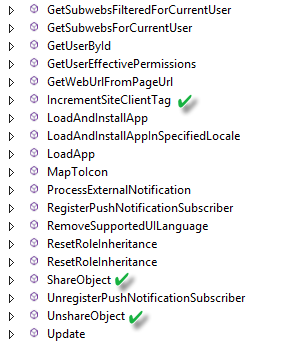
This is my fourth post about the new SharePoint 2016 remote API. This new post will cover the 18 new methods and 8 new properties in the Microsoft.SharePoint.SPWeb class. I am now working with the SharePoint 2016 RC released on January 20th. It is evident that there will be exposed methods on the Remote API which will be callable but throw a not implemented error in SharePoint On-Prem.

New SPWeb Methods

CreateAnonymousLink

This method is callable from REST or JavaScript. It takes a URL to a document and a boolean to give access to edit the document. It will return a string representing a anonymous URL that will not expire. It is not implemented in On-Prem. It is implemented in SharePoint Online but from my testing it will only work from a personal site. You cannot use it from an Add-In hosted outside of a personal site. You will receive a “MountPoint” security error. “MountPoint” is another word for OneDrive.

CreateAnonymousLinkWithExpiration

This method is callable from REST or JavaScript. It takes a URL to a document and a boolean to give access to edit the document, and a string representing an expiration date. It will return a string representing a anonymous URL that will expire on the date given. The valid formats for the date string are "yyyy-MM-ddTHH:mm:ssK", "yyyyMMddTHHmmssK". This method is not implemented in On-Prem. It is implemented in SharePoint Online but from my testing it will only work from a personal site. You cannot use it from an Add-In hosted outside of a personal site. You will receive a “MountPoint” security error.

CreateOrganizationSharingLink

This method is callable from REST or JavaScript. It takes a URL to a document and a boolean to give access to edit the document. It will return a string representing a URL that everyone in the organization can access that will not expire. It is not implemented in On-Prem. It is implemented in SharePoint Online but from my testing it will only work from a personal site. You cannot use it from an Add-In hosted outside of a personal site. You will receive a “MountPoint” security error.

DefaultDocumentLibrary

This method is usable from JavaScript and REST and will return the “MySite” document library if the SPWeb is a personal site, otherwise it returns the document library identified in a SharePoint resource file with the key of  “documents_folder”, which is typically “Shared Documents”.

DeleteAllAnonymousLinksForObject

This method does what it exactly says. Given a URL it will remove all sharing permissions for anonymous links created by the previous listed methods. This is callable from both REST and JavaScript. Caller must have manage permissions privileges.

DeleteAnonymousLinksForObject

This method does exactly what DeleteAllAonymousLinksForObject does. Very difficult to tell the difference between the two. This is callable from both REST and JavaScript. Caller must have manage permissions privileges. This is not implemented in SharePoint On-Prem.

DestroyOrganizationSharingLink

This destroys a previously issued organization wide shared link using the CreateOrganizationSharingLink method using the URL passed in. Once again this method is not available on SharePoint On-Prem.

ForwardObjectLink

This method which is usable from JavaScript and REST will create and forward a view only email link to multiple users. The parameters are the URL of the document you want to share, the string representation of output from the people picker, an email subject and body. This is not available on SharePoint On-Prem. This method will throw an error if any of the people selected are external or do not have view rights to the document.

GetContextWebThemeData

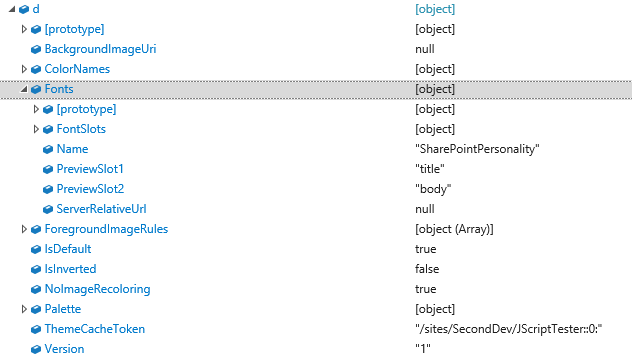
This is a static method which is only available through REST. This will return a JSON representation of the new beefed up SPTheme class. The method will call and get the current web’s theme information and render all the theme information you would ever need to help you match the current theme. Below is screen shot of the result after calling JSON.parse on the return string. As you can see it returns colors, background image, fonts and much more. You will need to look more closely at Microsoft.SharePoint.Utilities.SPTheme to understand what is returned.

GetDocumentLibraries

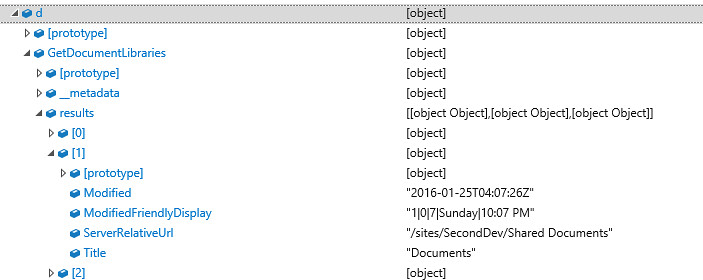
This is very nice method to return a collection of SPDocumentLibraryInformation objects for the given URL passed as an argument. This is effecient since it is a static method, making it easy to build lists of document libraries in a given web. Below is screen shot of the return data. It has a property telling you the last date the title of the document libary was changed.

GetFileByGuestUrl and GetFileByLinkingUrl

Both these methods are a great way to access a file given links generated by the CreateLinkxxx methods on the SPWeb class. The GetFileByGuestUrl will validate the URL checking for the guest access token and whether it is expired. The GetFileByLinkingUrl checks for a unique id in the querystring and returns the file using that. Both are available for JavaScript and REST.

GetFileById and GetFolderById

Both these methods use the unique id (GUID) of the file or folder to return the file. Developers have been asking for this for a while. But also probably put in for OneDrive.

GetObjectSharingSettings

This static method will return a Microsoft.SharePoint.ObjectSharingSettings object. This object contains many properties that tells you what sharing capabilities the current user has for the document URL passed as an argument. For example, can the user share the document with an external user or can the current user edit the document.It also takes a group id and a boolean to use simplified roles. Not sure what these may be used for. This method is not implemented in SharePoint On-Prem and can only be used on a personal MySite in SharePoint Online. The method seems to be a great way to determine all the different permissions a user has for a document. Unfortunately, it is limited in its implementation.

IncrementSiteClientTag

This method availalble for REST and JavaScript will increment a tag value that is possibly used to flush the cached web controls for pages in a given site.

ShareObject

Static method to share an object such as a document and very similar to the ForwardObjectLink method. This method has more parameters such as the ability to propagate which settting this to true appears to solve some past problems with pushing permissions down to nested AD groups and universal security groups. This method also gives you an option to send an email or just give permissions to the object.

UnShareObject

Static method doing the opposite of the ShareObject method, both ShareObject and UnShareObject return a Microsoft.SharePoint.SharingResult.

New SPWeb Properties

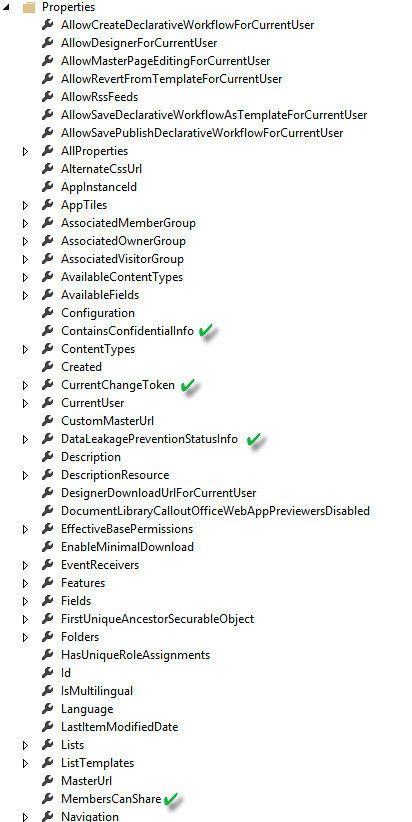
ContainsConfidentialInfo

This property returns true or false if the site contains any confidential information determined by the in place data loss protection policy. Typically this property is used when a DLP policy is implemented through the Compliance center.

CurrentChangeToken

Used by web part pages hosted in the site to determine if the site has changed.

DataLeakagePreventionStatusInfo

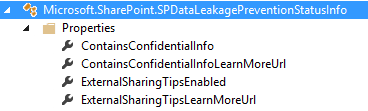
This property returns a Microsoft.SharePoint.SPDataLeakagePreventionStatusInfo class for the site and tells you whether the site contains confidential information and if external sharing DLP tips are enabled. This class also gives two help information URL’s for both. You can read more about DLP and SharePoint 2016 here.

MembersCanShare

True or false if sharing has been enabled on the site.

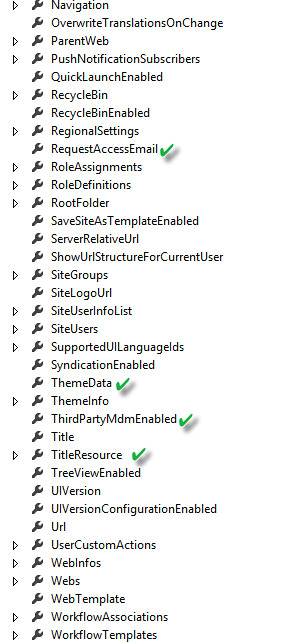
RequestAccessEmail

If the site has the email service configured and is not hosted on a virtual server, then this property will return the email address to request access to the site.

ThemeData

Property which exposes the same JSON as the GetContextWebThemeData method.

ThirdPartyMdmEnabled

This property will return true if the site is using a third party mobile device management solution.

TitleResource

Returns a Microsoft.SharePoint.SPUserResource containing the title of the site. Apparently useful for publishing.

SharePoint 2016 is all About Sharing, Security and OneDrive

As you can see that many of the methods and properties are devoted to sharing and data loss prevention. This seems to be the theme in the new features for SharePoint 2016. As a developer you must be aware the remote API code bases for SharePoint On-Prem and SharePoint Online have been merged. Many of the methods are not implemented at this time in On-Prem. It is very difficult to determine this unless you experiment. It appears that some of these methods can be enabled at a later time using flighting (enabling features using code). More to come.

Friday, January 1, 2016

What’s new in SharePoint 2016 Remote API Part 3 (Files)

Technorati Tags: ,

This is part three of a blog series about the new features available in SharePoint 2016 Beta 2 Remote API. This blog post will talk about the new features for files. Unfortunately, some of the new methods available for files do not necessarily work in Beta 2 for reasons I don’t understand as of yet.

File Versions

Getting previous version binaries in SharePoint has always been a pain. CSOM methods really did not work. Many developers used File.OpenBinaryDirect method along with the URL to the previous version which looked something like this: http://yoursite/yoursubsite/_vti_history/512/Documents/Book1.xls

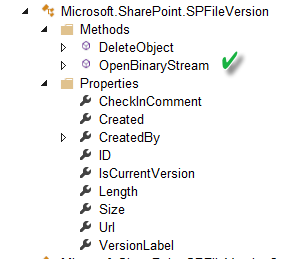
Of course you knew that 512 means version 1.0 or the magic number 1025 means version 2.1. There was a fomula that you were required to use to generate these numbers and construct the URL. However, even if you knew how to constuct the URL the CSOM OpenBinaryDirect method would return a 404. Most developers just used the .Net web client and the URL to get the binary. Now SharePoint 2016 has added OpenBinaryStream method on the SPFileVersion class.

The OpenBinaryStream method is available for both CSOM, REST and JSOM. The following is a code example using JSOM. Unfortunately, this still has the problem of decoding the binary stream similar to the issue of getting the binary for a SPFile object pointed out in Mikael Svenson blog post How to copy files between sites. If the file is not a text file then you get a file that has all the pages but the pages are blank. This problem still exists in SharePoint 2016. So I recommend using this method only with managed CSOM. Also, you still need to know the magic number for the version to retrieve it. The SPFileVersions collection has many methods that use the label, except the method to retrieive it. I can delete by the label but not retrieve by the label. Why?

function getVersionBinarySP() {
    var dfd = $.Deferred();
    var binaryData;
    hostweburl = decodeURIComponent(getQueryStringParameter('SPHostUrl'));
    appweburl = decodeURIComponent(getQueryStringParameter('SPAppWebUrl'));
    fileContentUrl = appweburl + "/_api/SP.AppContextSite(@target)/web/GetFileByServerRelativeUrl('/sites/seconddev/testdups/testdoc0.pdf')/Versions/GetById(512)/OpenBinaryStream?@target='" + hostweburl + "'";

    var executor = new SP.RequestExecutor(appweburl);
    var info = {
        url: fileContentUrl,
        method: "GET",
        binaryStringResponseBody: true,
        success: function (data) {
            binaryData = data.body;
            dfd.resolve(binaryData);
        },
        error: function (err) {
            dfd.reject(err);
        }
    };
    executor.executeAsync(info);
    return dfd;
}

What’s new for Files?

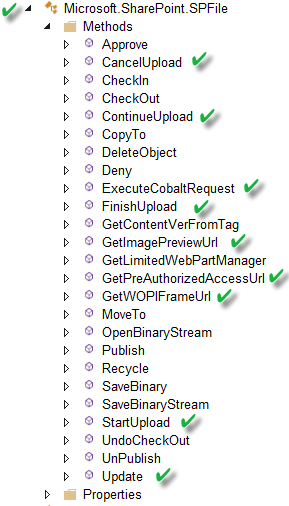
There a many new methods and properties available for remotely accessing SharePoint files. Some of these have already been implemented in SharePoint Online. Below is a list of the new methods.

StartUpload, ContinueUpload, ContinueUpload, FinishUpload Methods

These methods are for uploading files in fragments (chunking) which is useful for large files when connections can be dropped or throttled. SharePoint Online has had these methods for a while to help developers with throttling. The methods are enabled for CSOM, REST and JSOM. Once again I would not try using these from JavaScript given the issues with stream encoding. I did test these with managed CSOM, below is some code:

public void UploadFile()
{
    ClientContext clientContext = new ClientContext("http://win2012r2dev/sites/seconddev");

    var documentsFolder = clientContext.Web.GetFolderByServerRelativeUrl("/sites/seconddev/testdups");
    Microsoft.SharePoint.Client.File uploadFile = documentsFolder.Files.GetByUrl("testdoc12.pdf");
           
    clientContext.Load(uploadFile);
    clientContext.ExecuteQuery();

    using (var fs = System.IO.File.OpenRead(@"c:\wp8_enterprise_device_management_protocol.pdf"))
    {
        byte[] bytes = new byte[fs.Length];
        fs.Read(bytes, 0, (int)fs.Length);
        using (var inputStream = new MemoryStream())
        {
            inputStream.Write(bytes, 0, bytes.Length);
            inputStream.Position = 0;

            //Set up size of fragments to upload.
            int chunkSize = 1000000;
            int index = 0;

            Int64 offset = 0;
            var myGuid = Guid.NewGuid();

            while (inputStream.Position < inputStream.Length)
            {
                byte[] buffer = new byte[chunkSize];
                int chunkBytesRead = 0;
                while (chunkBytesRead < chunkSize)
                {
                    int bytesRead = inputStream.Read(buffer, chunkBytesRead, chunkSize - chunkBytesRead);
                    MemoryStream stream = new MemoryStream();
                    stream.Write(buffer, 0, buffer.Length);
                    if (bytesRead == 0)
                    {
                        break;
                    }
                    chunkBytesRead += bytesRead;
                    if (index == 0)
                    {
                        offset = uploadFile.StartUpload(myGuid, stream).Value;
                        clientContext.ExecuteQuery();
                    }
                    else if (inputStream.Position == inputStream.Length)
                    {
                        uploadFile.FinishUpload(myGuid, offset, stream);
                        clientContext.ExecuteQuery();
                    }
                    else
                    {
                        offset = uploadFile.ContinueUpload(myGuid, offset, stream).Value;
                        clientContext.ExecuteQuery();

                    }
                }

                index++;
            }

        }
    }

}
These methods all work together to help upload files in fragments. You just need to make sure to use the same GUID when sending the request. Unfortunately, I could not get this to work. I keep getting a Cobalt (File Syncronization) error of “Invalid Argument”. However, please try the code I could be missing something.
ExecuteCobaltRequest Method

Once again this is a method for editing files that are supported by the Office Online Server (WOPI Protocol) that has been available in Office 365. This method is now supported for SharePoint 2016 and Office Online Server Preview. There is little documentation on this method, The method is supported in managed CSOM and JSOM. The method takes a stream as an argument so probably not a good candidate for JavaScript.

GetImagePreviewUrl

This method returns a URL to the new image preview handler that has been used by Delve in Office 365. I blogged about using this in your own hosted Add-In or search templates Get Faster Search Previews in SharePoint Online. Well now a handy method will build if for you in SharePoint 2016. This will work with office, pdf, tiff, bmp and png files. You can pass in the width and height and it will calculate a resolution and send back a URL similar to this:

http://win2012r2dev/sites/SecondDev/_layouts/15/getpreview.ashx?path=/sites/SecondDev/testdups/testdoc0.pdf&resolution=Width300&clienttype=webapp 

Unfortunately, the getpreview.ashx handler code will not work unless it is running on SharePoint Online. Huh?

GetPreAuthorizedAccessUrl

This method returns a URL to download the document. The method takes an integer as an argument representing the number of hours the link is good for. It has a guest token attached in the querystring. Below is an example of what is returned. You will have to log in with the userid listed in the querystring.

http://win2012r2dev/sites/SecondDev/_layouts/15/download.aspx?guestaccesstoken=NduByOVhPo1QJyW0FEZVaikciOnDC03opCSiUWylH4s%3d&docid=0bfef46a04c964c7e983248c2051709fa&expiration=12%2f31%2f2015+6%3a11%3a57+AM&userid=1&authurl=True

GetWOPIFrameUrl

This is another convenience method. This is a URL to navigate to an office file (including PDF) in Office Online Server Preview. The method takes one argument an integer representing the SPWOPIFrameAction enumeration. This method supports, View, Edit, InteractivePreview, and MobileView. Below is an example of what is returned.

http://win2012r2dev/sites/SecondDev/_layouts/15/WopiFrame.aspx?sourcedoc={bec083e0-6ba6-4b87-9937-5f3c488e2f8a}&action=interactivepreview

Update

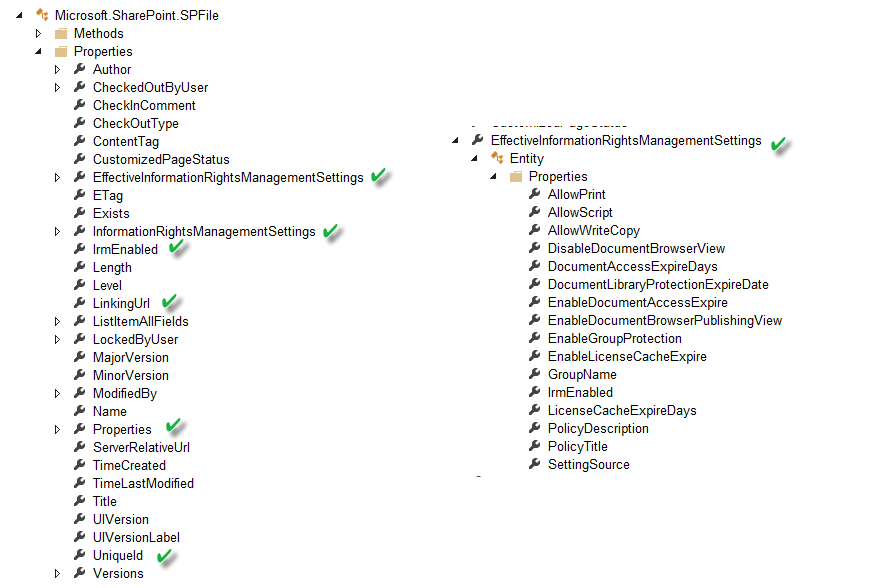
The SPFile and SPFolder now support property bags via the remote API. So you can now save metadata to your file and folders using the new Properties property along with this Update method.

function updateFilePropertyBag() {
    appweburl = decodeURIComponent(getQueryStringParameter('SPAppWebUrl'));
    hostweburl = decodeURIComponent(getQueryStringParameter('SPHostUrl'));
    context = new SP.ClientContext(appweburl);
    appContextSite = new SP.AppContextSite(context, hostweburl);

    targetWeb = appContextSite.get_web();
    var file = targetWeb.getFileByServerRelativeUrl("/sites/seconddev/testdups/testdoc0.pdf")
    var properties = file.get_properties();
    
    context.load(file);
    context.load(properties);

    context.executeQueryAsync(function () {
        var p = properties;
        p.set_item("whatever", false);
        file.update();

        context.executeQueryAsync(function () { },
            function (sender, args) {
                alert(args.get_message() + '\n' + args.get_stackTrace());
        });

    }, function (sender, args) {
        alert(args.get_message() + '\n' + args.get_stackTrace());
    });

}

Information Rights Management is a high priority in SharePoint 2016

Below is a list of new properties exposed on the SPFile in th remote API. As you can see Information Rights Management is a high priority with the surfacing of two new properties InformationRightsManagementSettings and EffectiveInformationRightsManagement. The former is the default settings and the later is what actually is set for the document if IRM is enabled. These settings are stored in the SPFile property bag but these new properties make it easy to read the right property. This comes in handy if your developing an application and you want to make sure you can print or view a document.

SharePoint 2016 Remote API Progress but not Perfection

Well this post shows you that the remote API for files is getting better in SharePoint 2016, but problems remain. The current Beta 2 remote API seems to be ahead of the what has been implemented on the server side. Some features appear in the API but are not fully implemented or may never be implemented. If some of the methods are for O365 only then they should be removed. The merging of the API between O365 and SharePoint 2016 may cause problems for developers since it will be impossible to tell which method works in what platform. There is more information to come. I urge you to start using the remote API more so you can take advantage of new features when your customers need them and to avoid the ones that do not work.

Monday, December 21, 2015

Whats new in SharePoint 2016 Remote API Part 2 (Sharing)

Technorati Tags: ,,

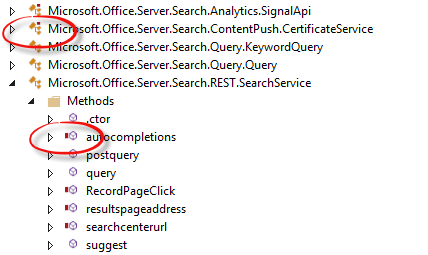
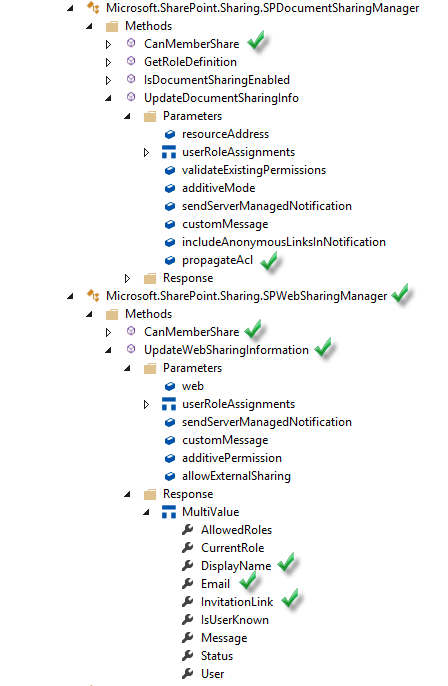
So this is number two in the what is new in SharePoint 2016 remote API blog series. This blog post is going to cover what is new for sharing in the remote API. In addition to some new document sharing features SharePoint 2016 has new web sharing features. Below is a screen shot of what is new in both document and web sharing. The screen shot is from the SPRemoteAPI Explorer Visual Studio extension to be released soon for SharePoint 2016.

What is new in Document Sharing?

The first thing you see is the CanMemberShare method on the SPDocumentSharingManager. This is available for CSOM,JavaScript but not REST since it takes a List as a parameter. This will return true or false if the current user has the permission to share documents for the document library. Some SharePoint hosted Add-In example code below:

function canMemberShare() {
    spHostUrl = decodeURIComponent(getQueryStringParameter('SPHostUrl'));
    context = new SP.ClientContext.get_current();
    parentContext = new SP.AppContextSite(context, spHostUrl);
    web = context.get_web();

    canShare = SP.Sharing.WebSharingManager.canMemberShare(context,web);
    
    context.executeQueryAsync(function (sender,args) {
        var c = canShare;
        alert('success');
    }, function (sender, args) {
        alert('Request failed. ' + args.get_message() +
        '\n' + args.get_stackTrace());
    });
}

Also, the SPDocumentSharingManager’s UpdateDocumentSharingInfo method has added a new argument called propagateAcl. Setting this to true appears to solve some past problems with pushing permissions down to nested AD groups and universal security groups. The response type returned on this method call also has new properties. The method will return an array of types of all the users that were given permission to a document. You now receive the display name and email of the user along with an invitation link to the document. Ths will make it easier to generate your own email messages.

Welcome to the new Web Sharing

So now we have a new SPWebSharingManager. It has similar methods as the SPDocumetSharingManager. The UpdateWebSharingInformation method can be used from CSOM and JavaScript but not REST since it takes a Web as a parameter. It has some different parameters since we are sharing a Web. It enables you to allow external sharing and like the SPDocumentSharingManager it returns an array of users that you are sharing  with along with display name, email and invitation link to possibly generate your own emails. Below is some example code from a SharePoint hosted Add-In:

function shareWebJSOM() {
    spHostUrl = decodeURIComponent(getQueryStringParameter('SPHostUrl'));
    context = new SP.ClientContext.get_current();
    parentContext = new SP.AppContextSite(context, spHostUrl);
    web = context.get_web();
    
    var userRoleAssignments = [];
    var roleAssignment = new SP.Sharing.UserRoleAssignment();

    //view only
    roleAssignment.set_role(1);
    roleAssignment.set_userId('win2012r2dev\test');
    userRoleAssignments.push(roleAssignment);

    var sharingResults = SP.Sharing.WebSharingManager.updateWebSharingInformation(context,web,userRoleAssignments,false,"Look at this web",true,false);
   
    context.executeQueryAsync(function () {
        var sharingResult = sharingResults[0];
        u = sharingResult.get_user();
        name = sharingResult.get_displayName();
        email = sharingResult.get_email();
        link = sharingResult.get_invitationLink();
    }, function (sender,args) {
        alert('Request failed. ' + args.get_message() +
        '\n' + args.get_stackTrace());
    });


}

Unfortunately, this will only work with an app web and not the host web. The server side code checks to make sure the Web that is passed as an argument is in the same web as the context. So if you want to do some bulk web sharing then powershell and CSOM would be ideal.

More ways to share in SharePoint 2016

SharePoint 2016 has added a lot to the remote API features and one is the new feature to share a Web. There is more to come in the next post.

Monday, December 14, 2015

How to make the new SharePoint Hosted Add-In deploy in SharePoint 2016 Beta 2

Technorati Tags: ,,

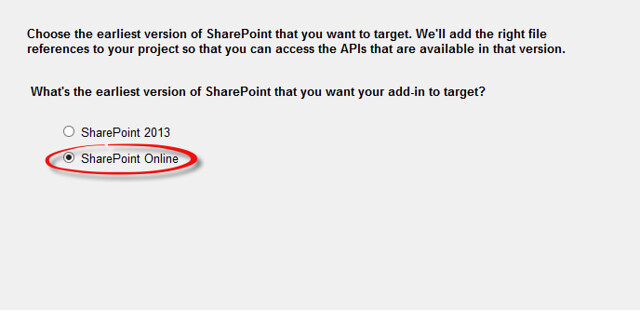
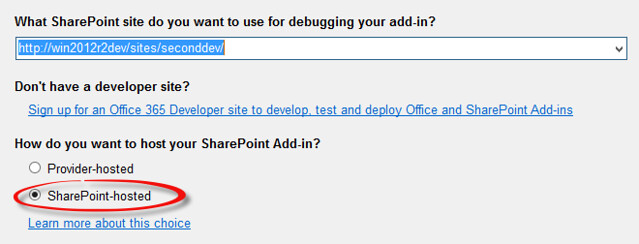
So I have been working with SP2016 Beta 2 and one of the complaints right now is that the Visual Studio 2015 Office Developer Tools Preview SharePoint Hosted Add-In will not deploy. So basically you need to change the target office version to 16.0 in the Visual Studio project file. The steps are illustrated below.

Create a new project:


Make sure to choose SharePoint Online as the target:

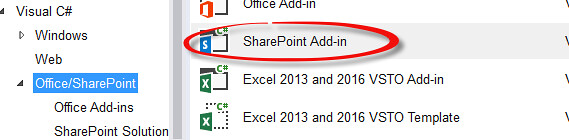
Choose SharePoint Hosted Add-In:

Now when you try to deploy you will get this error:

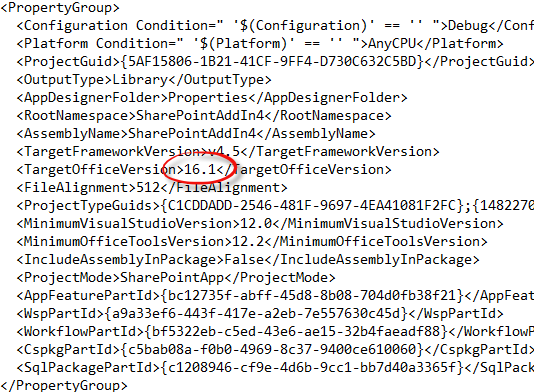
Open up the project file and change the target office version to 16.0

Deploy that SharePoint hosted Add-In to SharePoint 2016 Beta 2!

So after you change the target office version to 16.0 you will now be able to deploy to SharePoint 2016. Microsoft is currently working on fixing this in next phase of Visual Studio 2015 Office Developer Tools. In the meantime start digging in.

Monday, November 30, 2015

What’s New in SharePoint 2016 Remote API Part 1

Technorati Tags: ,,

With the release of SharePoint 2016 Beta 2 last month I decided to start digging into what are some of the new features in the remote API. This will be the first in a series of posts about the new capabilities in the SharePoint 2016 remote API. Many of the new features have already shown up in earlier releases of SharePoint Online but now are available in SharePoint On-Premises. However, there are some very cool things showing up in the REST for On-Premises. Here is a short list:

  • File Management
  • REST Batching
  • Document Sets
  • Compliance
  • Search Analytics
  • Work Management
  • Project Server
  • Web Sharing

In this post I will give you examples of how to use the new SP.MoveCopyUtil class with REST and a refresher on using REST batching.

Remember having to use SPFile and SPFolder to move and copy files?

To move or copy files and folders the SharePoint object model provided the MoveTo and the CopyTo methods to shuffle files around in the same web. These methods were never exposed in the remote API in SharePoint 2013. These are now exposed in the remote API in SharePoint 2016. This is great news but when it came to copying or moving files easily it is still cumbersome having to get the file or folder and call the method. If you are working with URLs like in search results it would be nice to just tell the server to take the source URL and move or copy it to another URL.

Enter the SP.MoveCopyUtil class

The new Microsoft.SharePoint.MoveCopyUtil class can be used with CSOM, JSOM or REST. It has four methods CopyFile, MoveFile, CopyFolder and MoveFolder. Each method takes two arguments the source URL and the destination URL. All the methods are limited to moving and copying in the same site. The class and method are static so the method is called with dot notation rather than with a forward slash. Very easy. Below is an example of a REST call to copy a file from a SharePoint hosted Add-In.

function copyFile() {

var hostweburl = decodeURIComponent(getQueryStringParameter('SPHostUrl'));
var appweburl = decodeURIComponent(getQueryStringParameter('SPAppWebUrl'));
var restSource = appweburl + "/_api/SP.MoveCopyUtil.CopyFile";

$.ajax(
{
'url': restSource,
'method': 'POST',
'data': JSON.stringify({
'srcUrl': 'http://win2012r2dev/sites/SecondDev/Shared%20Documents/wp8_protocol.pdf',
'destUrl': 'http://win2012r2dev/sites/SecondDev/testdups/wp8_protocol.pdf'
}),
'headers': {
'accept': 'application/json;odata=verbose',
'content-type': 'application/json;odata=verbose',
'X-RequestDigest': $('#__REQUESTDIGEST').val()
},
'success': function (data) {
var d = data;
},
'error': function (err) {
alert(JSON.stringify(err));
}
}
);

}

Make Batch Rest Requests in SharePoint 2016


Office 365 has had the ability to to batch multiple REST commands into one request for a while. I have a post about this here SharePoint REST Batching Made Easy.This feature is now available in SharePoint 2016. With the new ability to move and copy files and folders with the new SP.MoveCopyUtil class I thought it would be a good candidate to use to demonstrate the new batch request feature. The code below uses the RestBatchExecutor code available on GitHub to batch together multiple requests to copy a file using SP.MoveCopyUtil.CopyFile. Basically if builds an array of javascript objects like:


{'srcUrl': 'http://win2012r2dev/sites/SecondDev/Shared%20Documents/file.pdf', 'destUrl': 'http://win2012r2dev/sites/SecondDev/testdups/file.pdf' }


Then we loop through the array setting the payload property and load the request into the batch. I tried this with 50 different URLs and it executed one REST request and copied all 50. Very nice.

function batchCopy() {
appweburl = decodeURIComponent(getQueryStringParameter('SPAppWebUrl'));
hostweburl = decodeURIComponent(getQueryStringParameter('SPHostUrl'));

var commands = [];
var batchExecutor = new RestBatchExecutor(appweburl, { 'X-RequestDigest': $('#__REQUESTDIGEST').val() });

batchRequest = new BatchRequest();
batchRequest.endpoint = appweburl + "/_api/SP.MoveCopyUtil.CopyFile";
batchRequest.verb = "POST";

var mappings = buildUrlMappings();

$.each(mappings, function(k, v){
batchRequest.payload = v;
commands.push({ id: batchExecutor.loadChangeRequest(batchRequest), title: 'Rest batch copy file' });
});


batchExecutor.executeAsync().done(function (result) {
var d = result;
var msg = [];
$.each(result, function (k, v) {
var command = $.grep(commands, function (command) {
return v.id === command.id;
});
if (command.length) {
msg.push("Command--" + command[0].title + "--" + v.result.status);
}
});

alert(msg.join('\r\n'));

}).fail(function (err) {
alert(JSON.stringify(err));
});

}

More SharePoint 2016 Remote API Features


The new SP.MoveCopyUtil class is very handy if you are dealing with URLs and don’t want to create a new SP.File every time you want to move or copy it. The same goes for folders. The class is very easy to use and works great with the new REST batching that is available. This is just the tip of the iceberg on the new remote API features. My next post will be about the new exposed methods on DocumentSets.

Friday, October 23, 2015

Did you know that SharePoint has a Work Management Service REST API?

Technorati Tags: ,,

There has been a lot written on SharePoint’s Work Management Service and yet it still has many misconceptions by developers about the capabilities of  the API. This powerful SharePoint feature aggregates, synchronizes, and updates tasks from across SharePoint, Exchange, and Project Server. Many developers may not have leveraged this feature since it cannot be called from a SharePoint Add-in. Developers have been left to use the ScriptEditor web part along with the JSOM API. In this post I will show you how you can enable the use of Work Management Service from a SharePoint Add-in on-prem, and how to use the existing REST API.

Enabling Add-in Support for the Work Management Service

In 2013 I created the SPRemoteAPIExplorer Visual Studio Extension (Easy Development with Remote API). This extension documents and makes the SharePoint on-prem remote API discoverable. This blog post explained how SharePoint uses xml files located in 15/config/clientcallable directory to build a cache of metadata of what is allowed in the SharePoint remote API. Each xml file contains the name of the assembly that contains the metadata along with the “SupportAppAuth” attribute which can be set to true or false. If this attribute is set to false then SharePoint will not allow the namespaces for that remote API to be called from an Add-in. In addition, if the namespace you are calling from an Add-in does not have one of these xml files, then you receive a “does not support app authentication” error. Below is the contents of the ProxyLibrary.stsom.xml file which points to the “server stub” assembly for most of the basic SharePoint remote API.


Microsoft.SharePoint.ServerStub, Version=15.0.0.0, Culture=neutral, PublicKeyToken=71e9bce111e9429c

When I was comparing SP2013 with SP2016 I noticed that the work management namespace has a “server stub” assembly but not an xml file in the 15/config/clientcallable directory. So I just created one just like the one in SP2016 called ProxyLibrary.Project.xml pointing to the Work Management server proxy. 

Microsoft.Office.Server.WorkManagement.ServerProxy


I then just did an IIS reset and lo an behold you can now call the Work Management API from a SharePoint Add-In.


So What’s Available in REST?


Once I had added this xml file it was able to be exposed in the SPRemoteAPIExplorer extension. The extension shows all the classes and methods and whether they are available for JSOM, .Net and REST. Now I could see just about everything is available to be called from REST except one important thing … reading tasks! The UserOrderedSession.ReadTasks method takes a TaskQuery argument which cannot be serialized via  JSON. It is very complex type. However, SharePoint does supports some very complex types via REST such as the SearchRequest type for REST searches. So what’s the deal?


The good news is that you can do just about everything else that the JSOM API supports. Below is an example of creating a task with REST.

function testWorkManagmentCreateTask() {
hostweburl = decodeURIComponent(getQueryStringParameter('SPHostUrl'));
appweburl = decodeURIComponent(getQueryStringParameter('SPAppWebUrl'));

var restSource = appweburl + "/_api/SP.WorkManagement.OM.UserOrderedSessionManager/CreateSession/createtask";
$.ajax(
{
'url': restSource,
'method': 'POST',
'data': JSON.stringify({
'taskName': 'test REST create task',
'description': 'cool stuff',
'localizedStartDate': '10/18/2015',
'localizedDueDate': '10/25/2015',
'completed': false,
'pinned': false,
'locationKey': 5,
'editUrl': ''
}),
'headers': {
'accept': 'application/json;odata=verbose',
'content-type': 'application/json;odata=verbose',
'X-RequestDigest': $('#__REQUESTDIGEST').val()
},
'success': function (data) {
var d = data;
},
'error': function (err) {
alert(JSON.stringify(err));
}
}
);

}
Another example here to get the current user's task settings:
function testWorkManagmentREST() {
hostweburl = decodeURIComponent(getQueryStringParameter('SPHostUrl'));
appweburl = decodeURIComponent(getQueryStringParameter('SPAppWebUrl'));
var restSource = appweburl + "/_api/SP.WorkManagement.OM.UserOrderedSessionManager/CreateSession/ReadAllNonTaskData/UserSettings";
$.ajax(
{
'url': restSource,
'method':'POST',
'headers': {
'accept': 'application/json;odata=verbose',
'content-type': 'application/json;odata=verbose',
'X-RequestDigest': $('#__REQUESTDIGEST').val()
},
'success': function (data) {
var d = data;
},
'error': function (err) {
alert(JSON.stringify(err));
}
}
);

}

What is the Future for Work Management REST in SP2016


SP2016 allows the Work Management API to be used from SharePoint Add-ins. Unfortunately, you still can’t read tasks from the REST API. Also, Office 365 still does not allow the API to be called from SharePoint Add-Ins. In the mean time it is good that you can still use the API from REST. If you need to learn more on how to call the Work Management REST API use the SPRemoteAPIExplorer extension. A very useful extension!

Monday, August 31, 2015

Using Search as a Rules Engine

Technorati Tags: ,,

I have recently been working on a project where we needed to evaluate the state of an object and depending on the state take certain actions. Seems like a simple coding task to get this done, unless the rules to evaluate state are completely dynamic. An application where rules need to be captured and easily changed typically calls for a rules engine. A rules engine separates business rules from the execution code. Most rules engines require the use of variables along with rules implemented in some framework code. This could be a scripting language or a full fledge programming language like C# or Java. If the rules change usually some code change must take place.

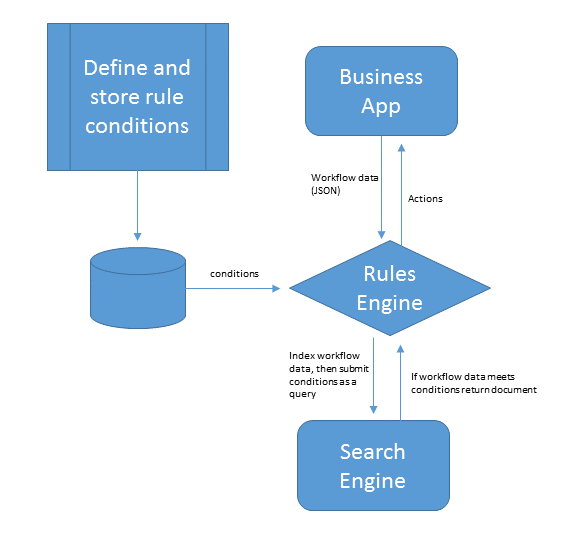
Rules engines are divided into two parts, conditions and actions. Business applications will define conditions and the corresponding actions the application should take given the conditions. The conditions in a rules engine consist of a set of evaluations of the state of an object at any given point of time. I propose that given the capabilities of a search engine it could be used as a rules engine. Conditions in a rules engine can be converted to a query against a particular document (JSON). The query could be stored and used by the rules engine to evaluate the state of a document and then take the associated actions if the document meets the conditions. Leveraging the richness of the query language would increase the capabilities of the rules engine to define very complex rules and possibly make rule processing faster. So what would the required features of a search product be in order for it to function as a rules engine?

Required Features of a Search Based Rules Engine

Index Any Type of Document

The first feature of a search product to function as a rules engine would be the ability to index any type of document. In this case a document would be any valid JSON document. In addition, since application data can be very dynamic a search product with the ability to query any value of that data without the overhead of having to define the schema of the document would be even better.

A Rich Query Domain Specific Language

Application rules can be very complicated and if you are going to use search as a rules engine then the product must have a strong query DSL (Domain Specific Language). The DSL should support the grouping or chaining of queries together to form a true or false condition. The query DSL should also support the turning off of word breaking of string values. Rules typically require exact matches and some search engines word break by default. Finally the query DSL should have the ability to be easily stored and retrieved. This ability is essential since you will want to capture business rules and translate them to query DSL storing them for later execution.

Near Real-Time Indexing

How fast a document is available to be searched after indexing is the most important feature for a search rules engine. Some applications will have data that is changed and must be evaluated immediately. In this case the search product must support real-time indexing where the document is available within one second. In other cases where the data is relatively stagnant it is possible to have higher index latency.

SharePoint Search , Azure Search and Elasticsearch How Do They Stack Up?

SharePoint Search

Unfortunately, SharePoint Search fails on all three features. SharePoint does not have real-time indexing. There is no ability to programmatically  index a document. Secondly it cannot index any type of document. It is limited to whatever IFilters that have been enabled. Finally the query DSL (KQL) is limited. There has been innovation with Delve and the Graph query DSL, however, it is still limited to social and collaboration scenarios.

Azure Search

Azure Search is built on top of Elasticsearch and is strong in all the features except the query DSL. The query DSL remains simple and is geared more towards less robust mobile apps. You can index any type of document however you must define your schema before it can be searched on anything other than it’s ID. You can search on your document within one second of indexing. A great benefit is that all fields are filterable by default, which means they support exact value matching only.

Elasticsearch

ElasticSearch meets all the above feature requirements to be a search rules engine. You can index any document and search on it within one second and not have to define a schema. The ElasticSearch query DSL has an incredible amount of features to support a search rules engine. It has the ability to combine multiple queries into a complex Boolean expression. However, fields are not by default set up to be searched with exact matching. This will require extra index mapping configuration especially if you are wanting to query arrays of child objects.  Finally the query DSL is defined in JSON making it easy to construct, store, and retrieve.

What about NoSQL products like DocumentDB?

NoSQL databases are also an ideal technology for implementing a rules engine. These types of databases can handle large complex documents, however the query DSL for these types of databases can vary and you must trade off between read and write optimizations. With Some NoSQL databases you must do some upfront indexing in order for the data to be immediately available for evaluation.

The Future is JSON Documents

It is becoming much easier to ramp up solutions using JSON documents. The richness and flexibility the format offers makes it easy to integrate multiple data flows into your enterprise solutions. This flexibility along with new search technologies can be combined to implement a fairly robust rules engine to drive some of your workflow applications. Search can play significant role in your applications. Search is not just for finding relevant documents but can be used to supplement or even drive application logic. 

Friday, July 31, 2015

Recognized SharePoint MVP Seven Years Straight

Technorati Tags: ,

I am very thankful to be awarded a seventh straight SharePoint MVP award by Microsoft. It has been a great journey starting all the way back in 2009. I am so glad to be part of a great community that shares it’s expertise and experience with others. Both SharePoint and Office 365 MVP’s dedicate a lot of time to provide others with information that can make them more productive. I have first hand experience knowing that developing for SharePoint and Office 365 can be frustrating and demanding. However, I also know that MVP’s get great satisfaction knowing they solved a problem for someone. Most MVP’s live and breath the technology they are involved in. We know that SharePoint and Office 365 is a great platform for making users productive. We are constantly obsessed with understanding and making the platform better. This is evident by the great number of sources of information that SharePoint and Office 365 MVP’s provide and contribute to. MVP’s produce code examples, best practices, blog posts, forum answers, development tools and great presentations. I love this community because when I need an answer to a technical problem I can usually find it from these resources. I am looking forward to another great year in the SharePoint community.

Tuesday, June 30, 2015

Get Faster Search Previews in SharePoint Online

Technorati Tags: ,,

Delve was recently released in Office 365 and the experience is bit different than what you may be used to when using SharePoint Online search. The Delve experience can be useful when looking for relevant documents that your colleagues are working on. One of the great features of Delve is the display template it uses to display results. It uses cards showing an image preview with the file icon and the file name. You can add the card to a board, send a link, and view who the document is shared with. The card is somewhat similar to the callout image preview that you would get on certain content types when using SharePoint Online search. The callout image preview in search uses an IFrame and the Office Web Apps server to display office documents and PDF files. The callout is more than a preview and gives you the ability to page through the whole document, print, or even download the document. On the other hand Delve uses a new file handler called getPreview.ashx and only renders a first page image preview without all the extra functionality. This is needed since the preview is displayed inline within the results. Another added benefit of the handler is that it can render image previews for other file formats such as TIF, BMP, PNG and JPG files. In this post I will show you how to incorporate this new file handler into a search display template. The example uses the file handler to display an image within the search callout. However, it is fast and responsive enough to use within the body of your display template if you wish. You can download the templates here: Quick View Display Template

Which Managed Properties to Use?

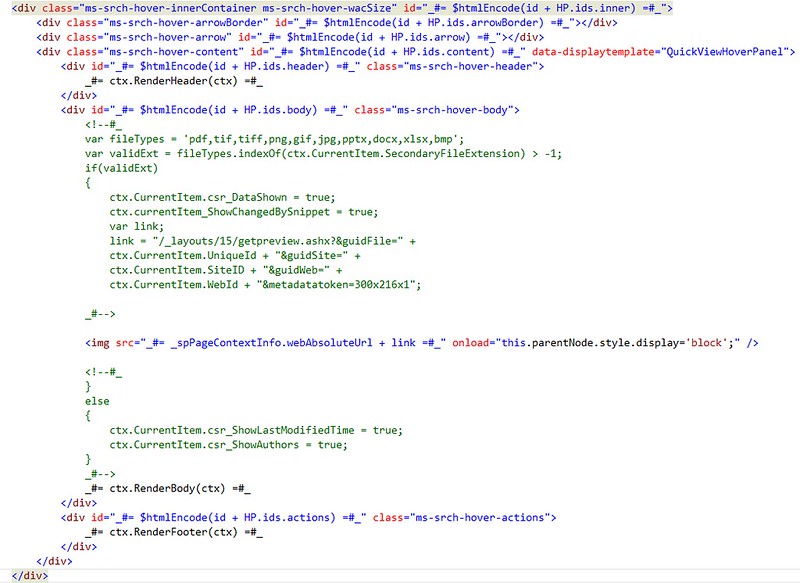
I downloaded the Item_PDF.html and Item_Hover_PDF.html and renamed them to Item_QuickView.html and Item_QuickView_HoverPanel.html. I then added the UniqueId, SiteID, WebID, SecondaryFileExtension managed properties to each display template. I use the SecondaryFileExtension managed property rather than FileExtension because FileExtension returns DispForm.aspx for documents that are not included in the file types for search to crawl. File types like TIF, BMP, PNG and JPG are not crawled and you have no way to add them in SharePoint Online. The JavaScript in the Item_QuickView_HoverPanel.html uses the SecondaryFileExtension to compare against a valid list of file extensions that the preview handler can process. If it is a valid extension then the code builds a URL to the getPreview.ashx preview handler and sets the Img element’s src attribute to this. That simple.

Fast Viewing of Images

The handler returns images faster than the Office Web Apps server previewer and supports more types of images. The handler does not need an IFrame making it much more lightweight and suitable for using within the body of your search results much like Delve. I tried changing the metadatatoken query string value to see if I could adjust the size returned but it had no effect.

The Benefits of Delve

The new preview handler is a new feature provided by Delve. You can take advantage of it in your search display templates. You can also just use Delve display template if you want. An a great example of this is provided by Mikael Svenson where he created a Delve clone for the Content Search Web Part.

Thursday, May 28, 2015

Get a Handle on Your SharePoint Site Closure and Deletion Policies with JavaScript

Technorati Tags: ,,,,

What is great about SharePoint hosted Add-ins (Apps) is that you can come up with some very interesting ideas on how to make people’s life so much more productive. SharePoint has the ability to define s site policy for closing and deleting sites over a period of time. This is great when you are trying to manage many sites and sub sites that tend to proliferate over time. There has been a lot written about how this works and the benefits Overview of Site Policies. In this post I am going to give you some ideas on how you could create a SharePoint hosted Add-in that could help make it easier to view how your policies have been applied. I will also give you an overview on what is available for site policy management with JavaScript.

Site Policy and JavaScript

There is some documentation on the .Net managed remote API for managing site policies but of course there is none for JavaScript. You can use the Microsoft.Office.RecordsManagement.InformationPolicy.ProjectPolicy namespace for the .Net managed remote API but you must load the SP.Policy.js file and use the SP.InformationPolicy.ProjectPolicy namespace in JavaScript. Apparently, applying site policies to a web is considered a project. All methods except SavePolicy are static methods. Also, every methods except SavePolicy takes a target SP.Web and the current context as arguments. Unfortunately, none of the methods are callable via the REST interface because the SP.Web is not included in the entity model. Still waiting on this. The following methods are available for managing site policies:

ApplyProjectPolicy: Apply a policy to a target web. This will replace the existing one.

CloseProject: This will close a site. When a site is closed, it is trimmed from places that aggregate open sites to site members such as Outlook, OWA, and Project Server. Members can still access and modify site content until it is automatically or manually deleted.

DoesProjectHavePolicy: This will return true if the target web argument has a policy applied to it.

GetCurrentlyAppliedProjectPolicyOnWeb: Returns the policy currently applied to the target web argument.

GetProjectCloseDate: Returns the date when the target web was closed or will be closed. Returns (System.DateTime.MinValue) if null.

GetProjectExpirationDate: Returns the date when the target web was deleted or will be deleted. Returns (System.DateTime.MinValue) if null.

GetProjectPolicies: Returns the available policies that you can apply to a target web.

IsProjectClosed: Returns true if the target web argument is closed.

OpenProject; Basically the opposite of the CloseProject method.

PostPoneProject: Postpones the closing of the target web if it is not all ready closed.

SavePolicy: Saves the current policy.

When working with policies you have the Name, Description, EmailBody, EmailBodyWithTeamMailBox, and EmailSubject. You can only edit EmailBody, EmailBodyWithTeamMailBox and EmailSubject, and then call SavePolicy. There are no remote methods to create a new ProjectPolicy.

Applying a Site Policy with JavaScript Example

Below is an example of using the JavaScript Object Model to apply a site policy to a SP.Web. The code example is run from a SharePoint hosted Add-in and applies an available site policy to the host web. Of course your Add-in will need full control on the current site collection to do this.

function applyProjectPolicy() {
    appweburl = decodeURIComponent(getQueryStringParameter('SPAppWebUrl'));
    hostweburl = decodeURIComponent(getQueryStringParameter('SPHostUrl'));
    context = SP.ClientContext.get_current();
    appContextSite = new SP.AppContextSite(context, hostweburl);
    targetWeb = appContextSite.get_web();

    policies = SP.InformationPolicy.ProjectPolicy.getProjectPolicies(context, targetWeb);

    context.load(policies);
    context.executeQueryAsync(function () {
        policyEnumerator = policies.getEnumerator();
        while (policyEnumerator.moveNext()) {
            p = policyEnumerator.get_current();
            if (p.get_name() == "test my policy") {
                SP.InformationPolicy.ProjectPolicy.applyProjectPolicy(context, targetWeb, p);
                context.executeQueryAsync(function () {
                    alert('applied');
                }, function (sender,args) {
                    alert(args.get_message() + '\n' + args.get_stackTrace());
                });
            }
        }
    }, function (sender, args) {
        alert(args.get_message() + '\n' + args.get_stackTrace());
    });

}

Getting a Better View of Your Policies

When applying a site policy to a target SP.Web all the information is stored in a hidden site collection list with the title of “Project Policy Items List”. Typically you would have to go to each site and click on “Site Settings” and click on “Site Closure and Deletion” to see what policy is applied. This informational page will show you when the site is due to close and/or be deleted. You can also immediately close it or postpone the deletion from this page. Instead of navigating to all these sites to view this information you could navigate the “Project Policy Items List” directly using he URL http://rootsite/ProjectPolicyItemList/AllItems.aspx. The AllItems view can be modified to display all the sites that have policies applied along with the expiration dates and even the number of times the deletion has been postponed.

Of course you probably don’t want to expose this list anywhere in the site collection navigation. You also want to be careful not to modify any of this information since it is used to control the workflows that close and delete sites. Your best bet here is to write a SharePoint Add-in to surface this data where it cannot be inadvertently modified. You can make a rest call to get these items and then load the data into the grid of your choice.

function getProjectPolicyItems() {
    appweburl = decodeURIComponent(getQueryStringParameter('SPAppWebUrl'));
    hostweburl = decodeURIComponent(getQueryStringParameter('SPHostUrl'));
    sourceUrl = appweburl + "/_api/SP.AppContextSite(@target)/web/lists/getbytitle('Project Policy Item List')/items?@target='" + hostweburl + "'";

    $.ajax({
        'url': sourceUrl,
        'method': 'GET',
        'headers': {
            'accept': 'application/json;odata=verbose'
        },
        success: function (data) {
            d = data;
        },
        error: function (err) {
            alert(JSON.stringify(err));
        }
    });

}

Creating Value with JavaScript

It is easy to create a SharePoint Add-in to put this data into a custom grid and then have actions to call the SharePoint JSOM to change policies on sites, re-open closed sites, postpone deletion or change the email that is sent out. You could select multiple sites and apply the action once. There are many possibilities to increase productivity. The one thing that is missing from the SharePoint Remote API is having the ability to view site policies settings. These settings are important when you want information about a policy that is applied to the site. You may want to know what type of site policy it is, for example, is it a close and delete policy or just a close policy? Can users postpone the deletion? Is email notification enabled and how often will it be sent? This would be information an administrator would want to quickly view from a SharePoint Add-in. Unfortunately, this information is stored in a property of the ContentType called XmlDocuments which is not available in the SharePoint Remote API. Every time you create a new site policy it creates a new ContentType in the root web of the site collection. All the site policy settings are stored as an xml document in the XmlDocuments property. It would be nice to have this information and especially if could be returned as JSON.

The JSOM and REST SharePoint Remote API still has many sections that are not documented. This is a shame because more and more developers are turning to creating client side Add-ins for their simplicity in deployment and configuration. I hope this post helped you understand what is available in the client side SharePoint Remote API for site policy management. Many times just because it is not listed in MSDN does not mean it is not available. Keep digging!

Monday, April 27, 2015

SharePoint Search, Azure Search and ElasticSearch

Technorati Tags: ,,,,

In the past six months I have been developing solutions using SharePoint, Azure and ElasticSearch. I wanted to write a post doing a brief comparison between the three search technologies. I also want to voice my concerns and hopes regarding the direction of SharePoint search. Microsoft has created Azure Search which is an abstraction running on top of ElasticSearch. Azure Search is still only in preview however it seems to be Microsoft’s focus for searching in the Cloud. The question is why was the focus not to use SharePoint search? In this post I will try to give you some reasons and why I think SharePoint search needs to incorporate some of the great features you see in ElasticSearch.

What is Unstructured Data?

Application data is seldom just a simple list of keys and values. Typically it is a complex data structure that may contain dates, geo locations, other objects, or arrays of values.

One of these days your going to want to store this data in SharePoint, can you say InfoPath? Trying to do this with SharePoint is the equivalent of trying to squeeze your rich, expressive objects into a very big spreadsheet: you have to flatten the object to fit the document library schema—usually one field per column—basically you lose all the expressive and relational data that your business needs.

Application data can be stored as JavaScript Object Notation, or JSON, as the serialization format for documents. JSON serialization is supported by most programming languages, and has become the standard format used by the NoSQL movement. It is simple, concise, and easy to read.

Consider this JSON document, which represents an invoice:

{
                  "vendorname": "Metal Container",
                  "items": [
                     {
                        "productdesc": "50 gal cannister",
                        "productid": 1256,
                        "productuom": "ea",
                        "quantity": 12,
                        "price": 25
                     },
                     {
                        "productdesc": "25 gal drum",
                        "productid": 1257,
                        "productuom": "ea",
                        "quantity": 12,
                        "price": 10
                     }
                  ],
                  "discountamt": 5,
                  "discountdate": "2014-02-28T00:00:00",
                  "vendor": 1600,
                  "duedate": "2014-03-31T00:00:00",
                  "invoicetotal": 420,
                  "invoicenumber": 2569
  }

This invoice object is complex, however the structure and meaning of the object has been retained in the JSON. Azure Search and ElasticSearch are document oriented, meaning that they store entire objects or documents. They also index the contents of each document in order to make them searchable. Document oriented searching  indexes, searches, sorts, and filters documents on the whole object not just on key value pairs. This is a fundamentally different way of thinking about data and is one of the reasons document oriented search can perform complex searches.

A Comparison of Searches


Above is a table listing a few features to compare the search technologies. Granted these are just a few and there are many other factors to compare. All of the features except for “Index Unstructured Data” are features focused on by search consumers.


SharePoint Search


SharePoint has a limit of 100 million indexed items per search service application. However, SharePoint’s strength is in crawling and indexing binary data. The other two do not come close to matching SharePoint’s capabilities. SharePoint has an extendable infrastructure which allows you to add your own custom content filtering and enrichment. SharePoint search out of the box can crawl many different types of file stores making it easy to get up an running. SharePoint’s query language (KQL) is rich enough to allow more knowledgeable developers to create some informative search experiences for users. SharePoint search has a huge advantage over Azure and ElasticSearch when it comes to security trimming search results. SharePoint can trim results to the item level using access control lists associated with the document. SharePoint even has the ability to customize security trimming with a post security interface you can implement.


Keyword Query Language (KQL) syntax reference


Azure Search


According to preliminary documentation one single Azure dedicated search service is limited to indexing 180 million items. This is based on 15 million items per partition with a maximum of 12 partitions per service. As with SharePoint you could increase the number of total items if you created more search services. Azure search does not support crawling and indexing binary data. It is up to you to push or pull the document data into the index. You can push data into the index with with the Azure Search easy to use API in either REST or .NET. Azure Search also supports pulling the data through it’s built in Indexers that support Azure DocumentDB , Azure SQL or Azure hosted SQL. An Azure indexer can be scheduled to periodically run and sync changes with the index. This is very similar to a SharePoint crawl except Azure indexers do not index binary data such as images. Full-Text searching of document object fields is supported. Azure search supports authentication except not on a user level but through an api-key passed through an HTTP header. Theoretically you can control user access through the OData $filter command in the API. Azure has its own query language which uses the basic operators such as ge, ne, gt, lt. It does have some geospatial functions for distance searching.


Azure OData Expression Syntax for Azure Search


Just remember that Azure Search is an abstraction layer that runs on top of ElasticSearch.


ElasticSearch


ElasticSearch is an open source java based free search product that runs on top of Lucene. Lucene search has been around for a while but it is very complex. ElasticSearch is a product that mixes analytics with search and can create some very powerful insights into your index. It can index an unlimited number of items just as long as you have the servers to support it. Horizontally scaling your search could not be easier. This is why it was chosen by Microsoft to be used in Azure. It does not support crawling. It supports pushing data into the index via an easy to use REST API. It also supports pulling data using a pluggable “river” API.  Rivers can be plugged in for popular NoSQL databases such as CouchDB and MongoDB. Unfortunately, rivers are now deprecated in version 1.5. However, you should be able to obtain comparable “LogStash” services which will push the data changes into the index. Azure Search more than likely is using LogStash to push data into their own instances of ElasticSearch. Security trimming is limited in ElasticSearch. It supports roles that can be synced with LDAP or AD via the “Shield” product. However, these roles do not offer item level security trimming like SharePoint does. The roles are typically used to limit access to certain indexes. ElasticSearch does support full-text searching of binary data such as images. I successfully achieved this MongoDB and GridFS. However, as with SharePoint storing indexing binary data takes up a lot of storage. ElasticSearch has a full fledged sophisticated query language allowing you to search and compare nested objects within documents all executed through a REST API.


ElasticSearch Query DSL


So What is the Big Deal about Unstructured Data?


Many businesses use SharePoint to store transactional content like forms and images. Through forms processing, complex data can be captured that contains parent and child sectional data. Businesses operate on many types of forms with data being organized on the form for a purpose. For example with an invoice it has child line item details that is important data to a business. If the forms processor can create a JSON object capturing the invoice as an entity, then with a NoSQL repository it can be stored intact. SharePoint on the other hand would force you to store the invoice within two lists, one for the invoice and the other for the line items. From a search perspective you would lose the relationship between the invoice and the invoice’s line items.


Relationships matter when it comes to search. For example account payable departments may use a “three-way matching” payment verification technique to ensure that only authorized purchases are reimbursed, thereby preventing losses due to fraud and carelessness. This technique matches the supplier invoice to the related purchase order by checking what was ordered versus what was billed. This of course would require checking line item detail. Finally, the technique then matches the invoice to a a receiving document ensuring that the quantity received is what was billed.


Having the ability to store the document data as JSON enables business to automate this process using search technologies that index this type of data. SharePoint does not have this ability, Azure Search’s query language currently is not sophisticated enough to do this. However, ElasticSearch’s query language is capable of matching on nested objects in these types of scenarios. Being able to leverage your search to automate a normally labor intensive process can save a business a lot of money.


Search Makes a Difference


Microsoft is moving in the right direction with search. In Azure Microsoft is building services around NoSQL and NoSQL searching. However, the focus is still more about mobility, social and collaboration. These are important, but many businesses run on transactional data such as forms and images. I would like to see SharePoint have the ability to integrate better with Azure DocumentDB and Search, opening up the query language more to enable the rich query features of ElasticSearch. In addition, it is imperative that Microsoft come up with a better forms architecture enabling the use of JSON rather than XML for storage. This would open many opportunities to leverage search such as automating some transactional content management workflows step, building more sophisticated e-discovery cases and intelligent retention policies.