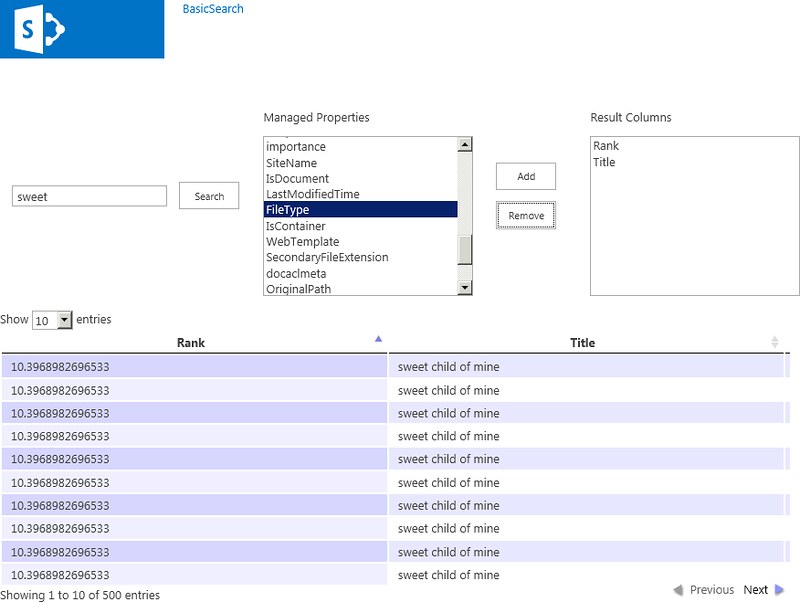
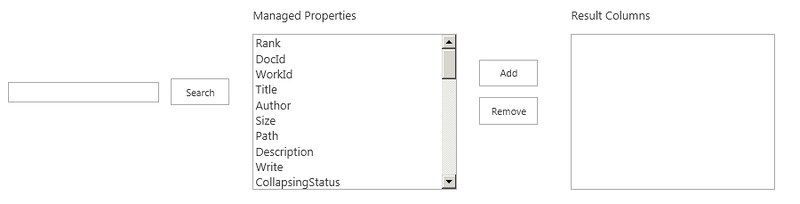
In part one of this series I mashed together a SharePoint on-premises app model search application using REST and JQuery. It gave you the ability to choose which managed properties to display from a list of default managed properties, and displayed the results in the DataTables JQuery plug-in. Searching was done using the SP2013 search REST api. The mash up was completely client side. In this post I take what I learned and create a search client app part. The full project code is here. A client app part is the app model's version of the standard SharePoint web part with restrictions. One of the restrictions is that it runs in it's own IFrame. I remember when IFrames were considered security risks in web applications, in the case of the app model it seems to be only way Microsoft could implement a sandbox within a web page. One of the benefits of client app parts is that they are more reusable and configurable versus an immersive application. Client app parts can be added to a web part page and configured just like a standard web part.
Client app parts limited configuration
When I converted the search application I was looking forward to being able to provide users the ability to choose which managed properties they wanted to display in the tool pane of the client app part. This would have used a multiple choice list box. I was sadly disappointed to find out that the client app part framework limits you to what you can use for app part configuration. Configuration of a client app part is done through the elements.xml definition. You add property elements and set attributes like the name, type, defaultvalue and webdisplayname. You then need to modify the Content element’s Src attribute to include these property names as query string variables. These configuration settings are then passed from SharePoint to your app via the query string. Unfortunately, the type attribute of the property element is limited to string, int, bool and enum. These translate to text box, text box, check box and drop down list controls in your client app part’s tool pane. That is all you get. Being able to define a richer configuration experience which you can do with on-premises web parts is not present. I hope Microsoft will provide a more robust client app part framework in future versions of SP2013 giving developers more choices via the type attribute.

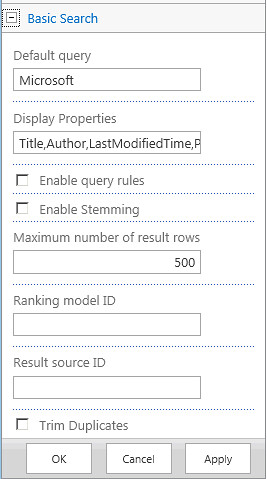
The search client app part provides users the ability to set various search parameters using the tool pane. For example, a user can type in a comma delimited list of managed properties they want displayed, they will be displayed in the order they are listed. Also, they can set the default query, row limit, trim duplicates, bypass query rules, enable stemming, set the ranking model id (GUID) and result source id (GUID). Being able to set the result source is essential since these are the replacements of SharePoint 2010 scopes. Once again I am disappointed because Microsoft has decided not to provide any ability to obtain result source information through any of the remote API’s. So users are required to know the GUID of a result source, which is ironic because SharePoint does not surface this anywhere in the administration UI.
Mashing it all up
The code in the project is completely javascript and jquery. It uses the Datatables plug-in to display, sort and page the results. I used felix gnass’s spinjs plug-in for displaying a processing indicator when searching, this is on github. I tried using the colReorder plug-in to reorder columns dynamically but unfortunately it does not render properly when dragging the column headers because the app part runs in an IFrame. I fear many jquery plug-ins may have problems with IFrames. All the searching and displaying code is in Search.js. The buildSearchUrl function reads the query string parameters sent in from the web part’s configuration and sets up the REST call to search.
function buildSearchUrl(){

    var qSelectProps = decodeURIComponent(getQueryStringParameter("qProps"));
    var qRowLimit = parseInt(getQueryStringParameter("qRowLimit"));
    var qDups = decodeURIComponent(getQueryStringParameter("qDups"));
    var qRules = decodeURIComponent(getQueryStringParameter("qRules"));
    var qModel = decodeURIComponent(getQueryStringParameter("qModel"));
    var qSource = decodeURIComponent(getQueryStringParameter("qSource"));

    var searchRestSource = decodeURIComponent(getQueryStringParameter("SPAppWebUrl"))
	+ "/_api/search/query?querytext='"
        + $('#searchText').val() + "'"
        + "&selectproperties='" + qSelectProps + "'"
        + "&rowlimit=" + qRowLimit
        + "&trimduplicates=" + qDups.toLowerCase()
        + "&enablequeryrules=" + qRules.toLowerCase()

    if (qModel.length > 0)
        searchRestSource = searchRestSource + "&rankingmodelid='" + qModel + "'";
    if (qSource.length > 0)
        searchRestSource = searchRestSource + "&sourceid='" + qSource + "'";

    return searchRestSource;

}
The convertResults method reads the returned data for the properties requested in the app part’s configuration into another array.
function convertResults(data) {

    var queryResults = data.d.query.PrimaryQueryResult.RelevantResults.Table.Rows.results;
    var tempResults = [];
    var key;
    var displayProps = decodeURIComponent(getQueryStringParameter("qProps")).split(",");
    var keyIndex;
    var resultIndexes = [];

    for (var i = 0; i < queryResults[0].Cells.results.length; i++) {
        key = queryResults[0].Cells.results[i].Key;
        keyIndex = displayProps.indexOf(key);

        if (keyIndex > -1) {
            resultIndexes.push(i);
        }
    }


    for (var h = 0; h < queryResults.length; h++) {
        var cellValues = [];

        for (var i = 0; i < resultIndexes.length; i++) {
            cellValues.push(queryResults[h].Cells.results[resultIndexes[i]].Value);
        }

        tempResults.push(cellValues);
    }

    results = tempResults;

}
The buildColumnDefs function builds the column definitions for the Datatable plug-in. Here you set whether the column is visible and searchable. I also use it to add a function for custom rendering of the data based on some rules. For example, since dates are returned in ISO-8601 format you must format them into something user friendly. Another example is setting up a link to the result document that displays the document’s corresponding icon similar to a document library. I basically converted the docicon.xml into a getDocIcon function to lookup the icon for the file extension. The code then creates an anchor to launch the KnowledgeLake Imaging Viewer in another window. If the managed property is a user’s profile picture the code creates an img element.
function buildColumnDefs() {
colDefs = [];
var colName;
var bDisplayCol = false;
var bSearchCol = false;
var displayProps = decodeURIComponent(getQueryStringParameter("qProps")).split(",");
for (var h = 0; h < displayProps.length; h++) {
colName = displayProps[h];
//rules for column definitions
switch (colName) {
case ("LastModifiedTime"):
colDefs.push({"sTitle": colName,
"bVisible": true, "bSearchable": true,
"aTargets": [h], "fnRender": function (o,val) {
var sDate = val.substring(0, val.indexOf(".")) + ".000Z";
var renderDate = new Date(sDate);
return renderDate.toDateString();
}
});
break;
case ("Path"):
colDefs.push({
"sTitle": "", "bSortable": false,
"bVisible": true, "bSearchable": true,
"aTargets": [h], "fnRender": function (o, val) {
var docIcon = "../_layouts/15/images/" + getDocIcon(val.substr((val.lastIndexOf('.') + 1)));
var link = "![]() ";
";
return link;
}
});
break;
case ("PictureURL"):
colDefs.push({
"sTitle": "", "bSortable": false,
"bVisible": true, "bSearchable": true,
"aTargets": [h], "fnRender": function (o, val) {
var link = "![]() ";
";
return link;
}
});
break;
default:
colDefs.push({"sTitle": colName,
"bVisible": true, "bSearchable": true,
"aTargets": [h]
});
}
}
}
Finally the doSearch method puts all the calls together.
function doSearch() {
    var searchRestSource = buildSearchUrl();

    var target = document.getElementById("searchResultsContainer");
    var spinner = new Spinner().spin(target);
    try
    {
        $.ajax(
                   {
                       url: searchRestSource,
                       method: "GET",
                       headers: {
                           "accept": "application/json; odata=verbose",
                       },
                       success: function (data) {
                           if (data.d.query.PrimaryQueryResult.RelevantResults.RowCount > 0) {
                               convertResults(data);
                               buildColumnDefs();

                               var oTable = $('#searchResults').dataTable({
                                   "bDestroy": true,
                                   "aoColumnDefs": colDefs,
                                   "bStateSave": false,
                                   "bPaginate": true,
                                   "sPaginationType":"full_numbers",
                                   "bLengthChange": false,
                                   "bFilter": false,
                                   "bSort": true,
                                   "bInfo": true,
                                   "bAutoWidth": false,
                                   "aaData": results,
                                   "aoColumns": null
                               });

                           }
                           else {
                               $('#searchResults').dataTable().fnClearTable();
                           }

                           spinner.stop();

                       },
                       error: function (err) {
                           spinner.stop();
                           alert(JSON.stringify(err));
                       },
                   }
               );
    }
    catch(err)
    {
        spinner.stop();
    }

}
The final results is a search client web part that be configured using the standard web part configuration framework. All this with client side only code. In the example below the client app part is configured to display the path, title, author, lastmodifiedtime for the default result source, which is documents.

In this example I display the PictureURL, AccountName and AboutMe managed properties and set the result source id to the People results.

Microsoft’s client web part app model needs more work
It was easy mashing together a client web part, however, trying to deliver a more advanced search solution using this framework proved challenging. The number one problem is the inability to provide a more immersive configuration for the web part. The framework (elements.xml schema) lacks capabilities to create richer types of controls, grouping of controls, and tool pane events. Secondly, the inability of the IE developer tools to step through the javascript running in the IFrame was painful. Having to redeploy, trust the app, edit the web part page, and add the client web part every time a change was made was excruciating. Maybe I am not doing something right but this does not seem productive. So the challenge is to fill in the gaps which translates into opportunity. So in upcoming posts I will attempt to give you some ideas on how to create a better configuration experience, save and reuse queries, and a good Visual Studio 2012 extension to eliminate the need to redeploy your app every time there is a change.