Monday, June 28, 2010

Making your SharePoint 2010 applications ECM aware (Part Three – Using Document Sets with the client object model)

This is part three of a multi-part series on how to make your SharePoint applications ECM aware, by taking advantage of the new ECM features in SP2010. My last post explained how you could leverage the new feature “Document Sets” to put a process around your document management. The post explained how you could do this using the server side object model and how difficult it is to try using document sets remotely through any built-in SharePoint remote API like the client object model or a web service. Well after much research it is possible to provision document sets with the client object model, albeit, a bit convoluted.

I started by looking at the way the server object model allows you to create a document set. This is done by using the static Create method of the DocumentSet class in the Microsoft.Office.DocumentManagement assembly. Below is code showing how simple this can be done. The method takes the folder where the document set will be located, the content type id for the document set you are creating, the name of the new document set, a hashtable of properties to be given to the document set, and most importantly a bool value stating whether to provision any default documents to the new document set. Very easy from a server side point a view, however, doing the same from the client object model proved to be difficult.

public static void CreateDocumentSet(SPFolder folder,
           SPContentTypeId id,
           string documentSetName,
           Hashtable properties,
           bool provisionDefaultDocuments) 
{
           DocumentSet ds = DocumentSet.Create(folder,
               documentSetName, id, properties,
               provisionDefaultDocuments); 
}

When trying to do this through the client object model I remembered that there are many settings for a document set and these settings are used when a new document set is provisioned. For instance, you can choose the allowable content types, the default documents, and the shared properties among the documents and whether the default documents have the document set name appended to them.
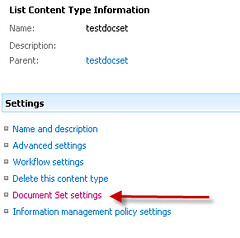
Below is the AddDocSet method which uses the client object model to create a new document set based on a document set content type. I have included this top level method along with another method in this posting, to show you all the different steps needed to accomplish what the server side object model does so easily. The full code which is included in the DocumentSetsRemote static class can be downloaded here.

DocumentSetsRemote

The AddDocSet method takes the following arguments, the url to the site, the name of the document library you want to create the document set in, the name of the document set content type, the name of the new document set you want to create, and a hash table of properties for the metadata you want to give the new document set. These would include the display name of the SharePoint field along with the value.

public static void AddDocSet(string siteUrl, string listName,
          string docSetContentTypeName,
          string newDocSetName,
          Dictionary<string, string> properties)
{
          ClientContext clientContext = new ClientContext(siteUrl);
          Web web = clientContext.Web;
          List list = clientContext.Web.Lists.GetByTitle(listName);

          clientContext.Load(clientContext.Site);

          ContentTypeCollection listContentTypes = list.ContentTypes;
          clientContext.Load(listContentTypes, types => types.Include
                                            (type => type.Id, type => type.Name,
                                            type => type.Parent));

          var result = clientContext.LoadQuery(listContentTypes.Where
              (c => c.Name == docSetContentTypeName));

          clientContext.ExecuteQuery();

          ContentType targetDocumentSetContentType = result.FirstOrDefault();

          ListItemCreationInformation newItemInfo = new ListItemCreationInformation();
          newItemInfo.UnderlyingObjectType = FileSystemObjectType.Folder;
          newItemInfo.LeafName = newDocSetName;
          ListItem newListItem = list.AddItem(newItemInfo);

          newListItem["ContentTypeId"] = targetDocumentSetContentType.Id.ToString();
          newListItem["Title"] = newDocSetName;
          newListItem.Update();

          clientContext.Load(list);
          clientContext.ExecuteQuery();

          List<ContentTypeId> allowedContentTypes = null;

          //get the allowed content types from the document set's schema
          if (targetDocumentSetContentType != null)
              allowedContentTypes =
                  GetAllowedContentTypes(
                  targetDocumentSetContentType.SchemaXml,
                  listContentTypes,
                  clientContext);


          //get the new document set created as folder in order
          //to access the UniqueContentTypeOrder property
          string targetDocSetUrl = listName + "/" + newDocSetName;
          Folder folder = web.GetFolderByServerRelativeUrl(targetDocSetUrl);

          clientContext.Load(folder, f => f.UniqueContentTypeOrder);
          clientContext.ExecuteQuery();

          if (allowedContentTypes != null)
          {
              //set the document set's allowed content types using
              //the UniqueContentTypeOrder property
              folder.UniqueContentTypeOrder = allowedContentTypes;
              clientContext.Load(folder);
              folder.Update();

              clientContext.ExecuteQuery();
          }

          //update the document set's docset_LastRefresh property
          UpdateFolder(clientContext.Site.Url, list.Title, newListItem.Id.ToString());

          //set default documents and shared properties
          SetDefaultDocuments(targetDocumentSetContentType,
              targetDocSetUrl, newDocSetName,
              properties, list, web, clientContext);

}

The first step is to use the client object model to create a folder listitem and set the contenttypeid field to the content type id of the type of document set you are creating. The second step is to set the “allowable content types” that this document set can contain. So when configuring a document set I was wondering how to obtain all this configuration data via the client object model. The allowable content types, default documents, shareable properties and other information is stored in the the SchemaXml property of the ContentType class. I used xml linq to pull this data from the schema as show  in the GetAllowableContentTypes method below:

private static List<ContentTypeId> GetAllowedContentTypes(string listSchemaXml,
     ContentTypeCollection listContentTypes, ClientContext context)
{

          List<string> schemaContentypeIds = new List<string>(); ;
          List<ContentTypeId> allowableContentTypeIds = new List<ContentTypeId>();

          XNamespace act =
              "http://schemas.microsoft.com/office/documentsets/allowedcontenttypes";

          XDocument document = XDocument.Parse(listSchemaXml);

          var result = from e in document.Descendants().Elements("XmlDocuments")
                           .Elements("XmlDocument").
                           Elements(act + "AllowedContentTypes")
                           .Elements("AllowedContentType").Attributes("id")
                       select e.Value;

          if (result != null && result.Count() > 0)
              schemaContentypeIds = result.ToList<string>();

          foreach (string schemaContentTypeId in schemaContentypeIds)
          {
              foreach (ContentType listContentType in listContentTypes)
              {
                  if (listContentType.Parent.Id.ToString() == schemaContentTypeId)
                      allowableContentTypeIds.Add(listContentType.Id);

              }
          }

          return allowableContentTypeIds;

}

This method returns a list of content type ids to set the new document set’s UniqueContentTypeOrder property. You will find in the downloadable code other methods using the same technique to obtain information.

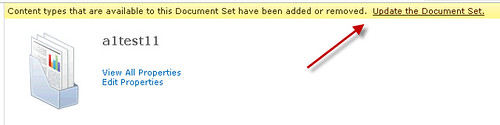
The next step is to update the “docset_LastRefresh” property of the document set. Why? This  apparently is a stamp of approval by the SharePoint UI that the document set was configured correctly. If you do not set this, then you will have a nagging yellow bar at the top of the SharePoint UI stating that the document set is missing some content types and needs updating. You can click on the link and it will generate the property for you. This value is stored in the SPFolder.Properties property bag. Unfortunately, the client object model does not support this. So, the UpdateFolder method uses the Lists.asmx web service to update this.
The final step to create a document set is to provision the default documents that are defined. These are the documents that are created by default whenever a new document set is created.
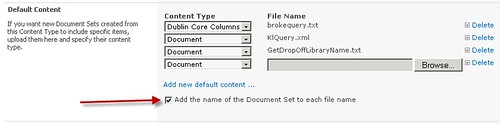
 

When creating the default documents there are many details that you must implement using the client object model. First, you must get the document from the server, assign the appropriate content type, assign any shareable properties, and optionally append the name of the document set to the document’s name. Once this is done you add the document to the document set. Provisioning default documents is inefficient when doing it remotely. This is because the default document must be downloaded from the list’s forms folder and then uploaded again into the document set. Unfortunately, there is no way around this. This is all implemented in the SetDefaultDocuments method in the downloadable code. The only problem I had was with shareable document set fields that had the same display name as fields defined on the list. The client object model cannot handle duplicate field names.

You can download all the code listed here along with other private methods for the complete solution. The code is contained in one static class called DocumentSetsRemote.cs.

DocumentSetsRemote

In summary, using document sets can be done remotely without having to use a custom web service. SharePoint does not expose any out of the box web services that deal explicitly with document sets, however, it does have the client object model and other standard web services you can take advantage of. With some basic research you can make your remote SharePoint applications ECM aware and leverage the new “Document Set” feature.

Monday, May 31, 2010

Making your SharePoint 2010 applications ECM aware (Part two – Document Sets)

This is part two of a multipart series of how to take advantage of the new ECM features in SharePoint 2010. Part one of this series talked about how you enable your applications to use the SharePoint Content Organizer feature. In this post I will discuss how to do the same with the new Document Set feature in SharePoint .

Document sets are basically SharePoint folders on steroids. The original concept was to enhance team collaboration on a set of documents without having to set up an additional SharePoint site. You could also look at Document Sets as mini SharePoint document libraries. They allow you to set permissions, assign workflows, share common properties and send an email link.  However, the real power of Document Sets is contained in their ability to define a repeatable process. A custom Document Set content type can be defined and reused across a site. In addition to assigning site columns to a document set content type, you can set common shareable properties that will be given to each new document that is added to the document set. This helps group common documents by common metadata, making it easy to search and retrieve these documents. Another, great feature is the ability to define what content types are allowed to be added to the document set. This gives administrators the ability to control the metadata assigned to documents within the set. Finally, the most important feature is the ability to assign default documents to be added automatically to the document set when it is created.

Document sets are a great way to increase productivity. For example, if a loan processing company receives a home loan application, then it can be scanned into a new  custom document set which will automatically have other required documents added. For instance, a property appraisal form or a house inspection report. Also, the document set itself has required metadata that needs to be entered before any documents are added. Document sets gives businesses the ability to put a process around content, ergo “content management”.

So, lets say you have a document scanning application and you want your application to create new types document sets dynamically. How can the application emulate being able to set up a new document set like the SharePoint UI? The following code shows how to use the server side object model to set up a new document set including adding shared properties, allowable content types, and default documents. The key is the DocumentSetTemplate class which contains all the properties needed.


public static void CreateDocumentSetContentType(string destinationUrl,
            string documentSetTypeName, string defaultDocumentPath)
{

            using (SPSite site = new SPSite(destinationUrl))
            {
                using (SPWeb web = site.OpenWeb())
                {

                    //create the new document set contenttype
                    SPContentType newDocumentSetContentType = web.ContentTypes.Add
                        (new SPContentType(web.ContentTypes["Document Set"],
                            web.ContentTypes,
                            documentSetTypeName));

                    //get a DocumentSetTemplate for the new document set
                    DocumentSetTemplate newDocumentSetTemplate =
                        DocumentSetTemplate.GetDocumentSetTemplate
                        (newDocumentSetContentType);

                    //add allowable content types
                    newDocumentSetTemplate.AllowedContentTypes.Add
                        (web.ContentTypes["Document"].Id);

                    newDocumentSetTemplate.AllowedContentTypes.Add
                        (web.ContentTypes["Picture"].Id);

                    //get the default document's binary
                    FileInfo fi = new FileInfo(defaultDocumentPath);
                    byte[] defaultDocumentBytes = new byte[fi.Length];
                    FileStream fs = fi.OpenRead();
                    fs.Read(defaultDocumentBytes, 0, (int)fi.Length);
                    //add the default document
                    newDocumentSetTemplate.DefaultDocuments.Add("defaultDocument",
                        web.ContentTypes["Document"].Id, defaultDocumentBytes);

                    //add a shareable property
                    newDocumentSetTemplate.SharedFields.Add
                        (newDocumentSetContentType.Fields["Description"]);

                    //make sure to add the document set name to the default documents
                    newDocumentSetTemplate.DefaultDocuments.AddSetName = true;

                    newDocumentSetTemplate.Update(true);
                    newDocumentSetContentType.Update();
                    web.Update();
                }
            }
}

After running this code you can verify that it works by going to “Site Settings—>Site Content Types” . Find your new content type and select it.  Then you can view your settings by clicking on “Document Set Settings”. Now you can use this new document set content type to create new project folders in your document libraries.

While I was testing this code I was curious as to where the actual default documents are stored in SharePoint. They must be made available to all content types inheriting from it. At first I thought they might be stored in a site level hidden list. However they are actually stored within the SPWeb’s folder collection under “_cts”. So if you want to see the documents programatically you use the this as example to follow:

SPWeb.Folders["_cts"].SubFolders["document set name"]

Another thing your application may want to determine is if a particular file is part of a document set. The code below will take a url to a SharePoint file and return whether it is part of a document set.

       public static bool IsPartOfDocumentSet(string url)
       {

           DocumentSet ds = null;

           using (SPSite site = new SPSite(url))
           {
               using (SPWeb web = site.OpenWeb())
               {
                   object value = web.GetFileOrFolderObject(url);

                   if(typeof(SPFile).IsAssignableFrom(value.GetType()))
                   {
                       SPFile file = value as SPFile;
                       ds = DocumentSet.GetDocumentSet(file.ParentFolder);
                   }
                   else
                   {
                       if(typeof(SPFolder).IsAssignableFrom(value.GetType()))
                       {
                           SPFolder folder = value as SPFolder;
                           ds = DocumentSet.GetDocumentSet(folder);
                       }
                       else
                           return false;
                   }

                   if (ds != null)
                       return ds.ContentTypeTemplate.AllowedContentTypes.Count > 0? true : false;
                   else
                       return false;

               }
           }
         }


This code uses the static GetDocumentSet method of the DocumentSet class. All the code above makes use of the Microsoft.Office.DocumentManagement assembly located in the 14 hive ISAPI folder. Once you have a reference to the DocumentSet object you can interrogate it’s properties to work with it in your application. If you need to access the files in the document set you can access the Folder property of the document set which contains the Files collection.

The biggest problem with SharePoint document sets is the lack of any remote access to them. There are no client object model methods or web services to access them. It is up to the developer to create a custom web service to manipulate them remotely from the application.  You can create a document set content type through the client object model:

Creating document sets remotely

Unfortunately you cannot add the default documents and other features described above. It might be possible by manipulating the Schema property of the client object model content type by adding the xml declarations for the allowable content types and other information. Further research needs to be done on that. If I am able to do this, then I will be sure to post it here.

Document sets are a great new feature in SP2010 and can add a lot to your content management application. Unfortunately, Microsoft needs to give us access to them remotely.