Wednesday, June 1, 2011

The Life and Times of a SharePoint Search Results Click Event

Technorati Tags: ,,

In my previous posting I wrote about how to customize your own ranking models. Ranking models are used to sort search results according to their relevance. The higher the rank of the document the higher it is listed in the search results.  SharePoint Search 2010 implements the BM25 ranking model. This model uses field weighting (managed properties) for dynamic ranking. For instance, some properties are more important than others, like title or social rating.  For static ranking calculations, SharePoint search ranks a document higher  if a document in a search results set was visited (click through) from a search results page.  In this post I will explain how SharePoint Search implements the tracking of click through events by users from the search results page. Also, I will show how custom search applications can leverage a SharePoint web service and the object model to log click through events.


Enable Query Logging

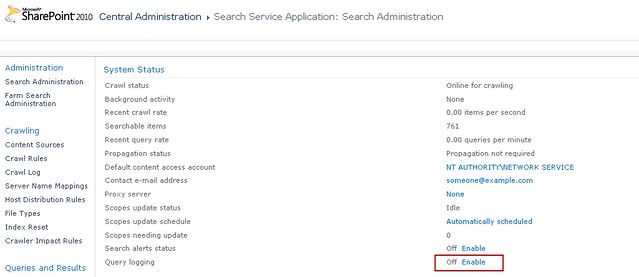
The first step of making sure search result click through events are used in ranking calculations is to enable query logging in the Search Service Application associated with the web application.  This can be enabled by navigating to the Search Service Application in Central Administration and clicking the Enable link next to Query Logging.


The Life of a Search Results Click Event

The flow diagram below illustrates the steps taken to process a search result click through in order for it to affect the relevance ranking of the document.
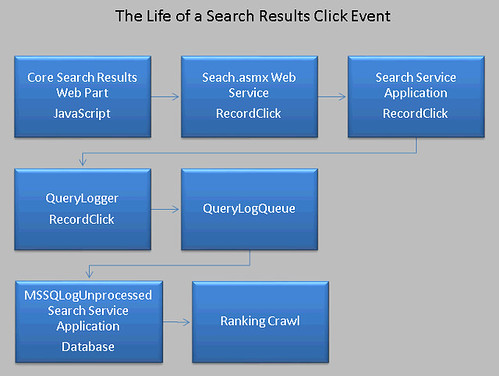
 

The first step of this process is initiated by the Core Search Results Web Part using JavaScript. The web part emits JavaScript to call the Search web service’s RecordClick method when a user clicks on the title or the URL of the result item. You can easily verify this using Fiddler. In the second step the Search web service calls the associated Search Service Application’s RecordClick method. The service application then calls the internal QueryLogger’s RecordClick method which in turn then calls the internal QueryLogQueue. This object caches the information sent and periodically flushes the data to the MSSQLogUnprocessed table contained in the Search Service Application’s database. These unprocessed URLs are processed and used in the next ranking calculation.

In addition to tracking click through events from search result items the web part will also track click through events for Best Bets. Best Bets are suggested links set up by search administrators that represent the most relevant documents for given keyword terms. Best Bet click through events are used to help manage Best Bet using the Best Bet Usage page in the Search Keywords section of Site Collection Administration. The search administrator can use this information to determine if Best Bets are being used.


Enable Custom Search Applications Click Through

SharePoint Search only records the search result click through event if query logging is enabled and if the search results are hosted in the Core Search Results Web Part. Custom search applications that do not use this web part must implement it. There are two methods to track search result  click through events, one using the Search web service’s RecordClick method or the SearchServiceApplication class’s  RecordClick method.


Search Web Service RecordClick Method

Custom search applications running remotely should use the Search web service to record a click through event. The important task is to create and populate the xml that is sent to this method. The xml represents a serialized Microsoft.Office.Server.Search.Query.QueryInfo class. If you reflect the QueryInfo class you will see custom xml serialization attributes and elements defined for each property. The attributes are cryptic. Below is an example of an xml serialized QueryInfo object:
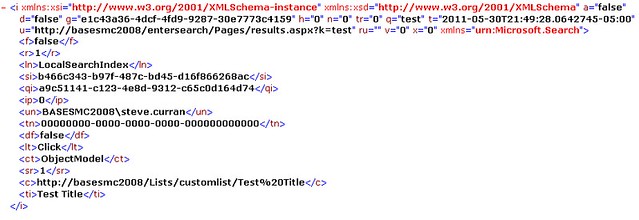
The “c” element represents the URL that was clicked. The “g” attribute represents the guid ID for the SPSite that the search was executed from and is required. The “qi”  element is required and represents the id of the query. In the case of custom search applications you can create your own guid for the query id. Finally, the “t” attribute represents the time that the search was executed and is required. You must also send it in UTC format. Below is sample code for recording a click through event using the Search web service.

public static void RecordSearchClick()
{
    string xmlTemplate = "<i  ";
    xmlTemplate += "g=\"e1c43a36-4dcf-4fd9-9287-30e7773c4159\" ";
    xmlTemplate += "t=\"2011-05-31T21:49:28.0642745-05:00\" ";
    xmlTemplate += "xmlns=\"urn:Microsoft.Search\"> ";
    xmlTemplate += "<qi>" + Guid.NewGuid().ToString() + "</qi>";
    xmlTemplate += "<c>http://basesmc2008/tester/pdfimg.pdf</c> "; 
    xmlTemplate += "</i>";

    search.QueryService queryService = new search.QueryService();
    queryService.Url = "http://basesmc2008/_vti_bin/search.asmx";
    queryService.UseDefaultCredentials = true;
    queryService.RecordClick(xmlTemplate);

}


Search Service Application RecordClick Method

Custom search applications that can access the SharePoint object model should use the Microsoft.Office.Server.Search.Administration.SearchServiceApplication object associated with the web application it is running in.  This class exposes a RecordClick method using a QueryInfo object as an argument.  The Search web service RecordClick method calls this same method by de-serializing the xml sent to it into a QueryInfo object, then passing it as an argument. The code below shows you an example.

SPFarm farm = SPFarm.Local;
SearchServiceApplication searchApp = (SearchServiceApplication)farm.Services.
    GetValue<SearchQueryAndSiteSettingsService>().
    Applications.GetValue<SearchServiceApplication>("Search Service Application");

using(SPSite site = new SPSite("http://basesmc2008"))
{
    QueryInfo qi = new QueryInfo();
    qi.QueryGuid = Guid.NewGuid().ToString();
    qi.ClickedUrl = "http://basesmc2008/tester/pdfimg.pdf";
    qi.SearchTime = DateTime.Now;
    qi.ClickTime = DateTime.Now;
    qi.SiteGuid = site.ID.ToString();
    searchApp.RecordClick(qi);
}


Relevant Clicking

Search result click through events influence the relevance of a document. The action is important enough for Microsoft to integrate the tracking of this action directly into the Core Search Results Web Part. If your custom search applications do not extend this web part, then you can enable the same type of tracking using one of these two methods. The QueryInfo class is the structure used to hold this information. I recommend looking at this class further. The class has many properties and is also used for logging queries for search administration reporting. Other properties may play a role in influencing relevance, for example, the NonClickedUrls property can hold a string array of URLs that were not clicked. So it appears that not clicking on search result items can lower their relevance.

Monday, March 14, 2011

Tuning SharePoint Search Relevance with Ranking Models

Technorati Tags: ,,

Relevance is about how well search results match what the user wants to find. When searching for content I want a search engine to put the most relevant content at the top of the results page. Most search engines employ different algorithms or ranking models to compute what content item  is more relevant than another content item. Usually relevance is measured in terms of  one or more numeric scores. The lower the score the more relevant the document. There are two types of scores used, dynamic and static. The dynamic score represents how well a document matches a user’s query. Static scores represent the general popularity or value of a document. These algorithms are quite complicated.

SharePoint Search 2010 implements the BM25 ranking model, implemented at London City University. This model uses field weighting (managed properties) for dynamic ranking. For instance, some properties are more important than others, like title or social rating.  For static ranking calculations SharePoint search ranks a document higher (more valuable)  if a document in a search results set was visited (click through) from a search results page.  Also, SharePoint search looks at the depth of the document’s Url (number of slashes).  So the more slashes in the Url of the document the less valuable. So you may want to reconsider how deep you folder your documents if you want the document to be more relevant. Another static ranking factor is certain file types are more relevant than others. For example, Web Pages and Word files are considered more relevant than any other file type. The ranking model used by default in the SharePoint Search Core Result web part is the MainResultsDefaultRankingModel. The ranking models used by SharePoint Search are based on an xml schema which has very little documentation. However, it is based an a 2 stage ranking algorithm. You can read more about the schema at this link:

http://msdn.microsoft.com/en-us/library/dd954171(office.12).aspx

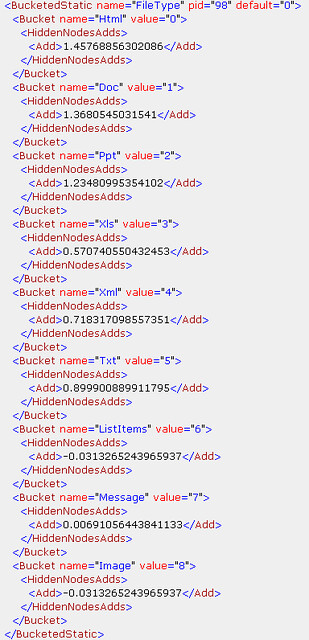
Below is an xml model snippet of how the default ranking model in SharePoint Search uses static bucketing system to rank certain document types higher than others. The system puts results into buckets and recalculates static ranking scores. As you see the buckets are based on the managed property FileType and the calculation only ranks on Html, Word, PowerPoint, Excel, Xml, Text, Email, List Items and Image.


Tuning Relevance

So as an implementer of SharePoint Search you may look at the default ranking model and feel that it does not meet your needs. For example, if your company does a lot of document imaging then the more relevant file type would be Pdf and Tiff files. How can you make the the out of the box SharePoint Search more relevant for your business? You can do this  by creating your own custom ranking models, then importing them into SharePoint and modifying the Search Results Core web part. Unfortunately, the schema for custom ranking models is much more limited than the RankingModel2NN schema used internally by the SharePoint Search web parts.

Custom Ranking Model Schema

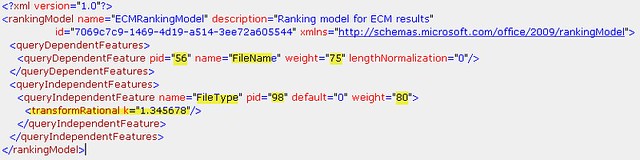
Microsoft only allows you to customize certain parts of the search engine ranking algorithm due to its complexity of implementation. First of all you must have at minimum in your custom ranking model xml one queryDependentFeature. This element defines what properties you want to make more important when the the user’s query is evaluated. You can add a queryIndependentFeature element also. Remember the queryIndependentFeature is for static analysis or popularity. In the example below I created a custom ranking model xml which puts a large weight on the FileName managed property for the query dependent feature and a large weight on the FileType managed property for the query independent feature. Notice you need to have the PID of the managed property which can be obtained by either powershell, object model or examining the MSSManagedProperties table it the Search Service Application database.  The transformRational element has no documentation. If you examine the custom ranking model schema you will see there are other types of ranking transforms.

You can add the custom xml ranking model to the available ranking models using the object model.

public static void  AddCustomRankingModel(string rankingModelXml)
{
    SPFarm farm = SPFarm.Local;
    SearchServiceApplication searchApp = (SearchServiceApplication)farm.Services.
        GetValue<SearchQueryAndSiteSettingsService>().
        Applications.GetValue<SearchServiceApplication>("Search Service Application");

    Ranking ranking = new Ranking(searchApp);
    ranking.RankingModels.CreateFromXML(rankingModelXml);
}

This also can be done using powershell Set-SPEnterpriseSearchRankingModel

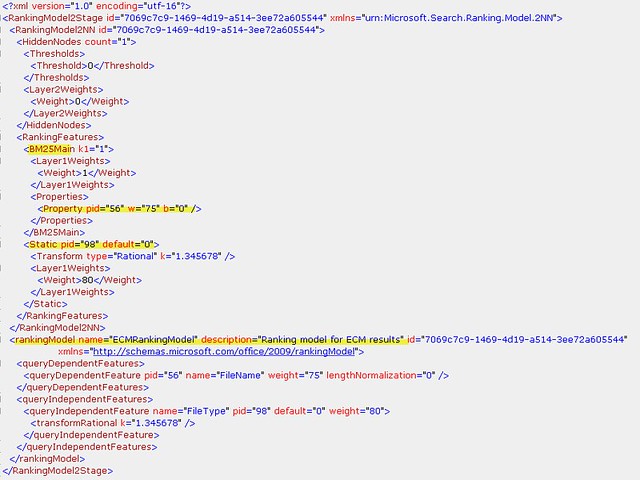
So once I added the custom ranking model I expected it to look the same in the MSSRankingModels table in the Search Service Application database. Below is what it was transformed to:

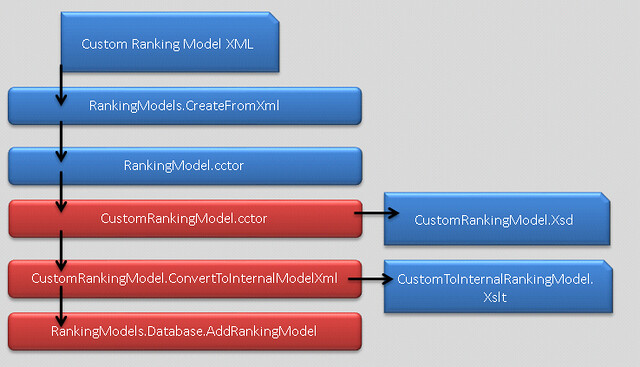
The code transforms the custom ranking model xml to the internal schema adding your query dependent managed property to the BM25Main ranking feature. This is the basic content ranking feature that SharePoint uses to rank the content of a document. In addition it converted my query independent feature to a standard static ranking feature for the FileType managed property. You can see I am unable to manipulate the static bucketing ranking used by SharePoint Search web parts. So I tried taking the exiting MainResultsDefaultRankingModel xml and modifying it, substituting the Html and Doc buckets with Pdf and Tif file types. I then tried to add this xml as a new ranking model and received an xml schema validation error. The object model validates that the custom ranking model xml follows the customrankingmodel.xsd and then transforms the xml using the customtointernalrankingmodel.xslt before saving it to the database. So there is absolutely no way to customize an existing ranking model. You are limited to whatever features Microsoft enables using the custom ranking model schema. The schema and the xslt are embedded resources in the Microsoft.Office.Server.Search assembly.


Implementing Custom Ranking Models

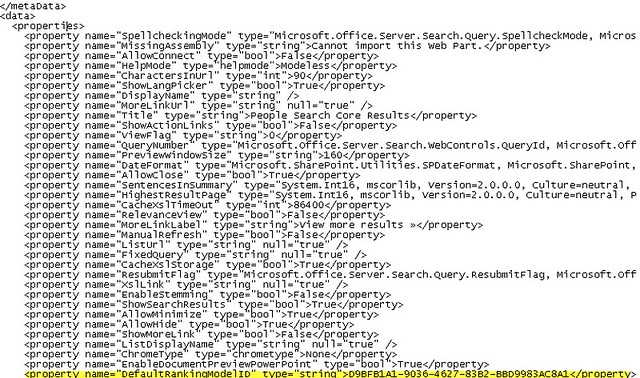
Once you have saved your custom ranking model. You can use it in a the Search Core Results web part. You can export the web part and add the ID of the new ranking model by setting the DefaultRankingModelID property. Normally this property has no setting which means it uses the default ranking model.

You can then import the web part and use it on a custom search results page.

You could also implement your own search results web part allowing an administrator to select a ranking model from a drop down list. The RankingModelsCollection is a collection of RankingModel objects that have the ID and the description you can display in your web part’s tool pane. Once you have set the ranking model id you just set it on the KeywordQuery.RankingModelId property.

There is a lot of information about how to implement a custom ranking model but little information on how to manipulate the xml and how the xml works with SharePoint Search. It is a great feature if you can figure out what the xml elements and attributes mean. However, it is evident that Microsoft wants to limit the customization. Being able to manipulate the buckets for static file type rankings would be very beneficial to an ECM system. HTML and Microsoft Office Documents are not always the most important documents in an ECM system. It would be nice to see more out of the box ranking models designed for ECM in the next version of SharePoint similar to the models created for social collaboration which are used in the People search results. In the mean time you can continue to experiment using the limited schema to see if you can get Pdf and Tiff files to be ranked higher than Html.  You can read more about Microsoft’s implementation of the BM25 ranking model and some interesting reading regarding “buckettng schemes” in search indexes.

http://trec.nist.gov/pubs/trec14/papers/microsoft-cambridge.enterprise.pdf

http://ecommons.cornell.edu/bitstream/1813/5705/1/TR2005-2005.pdf

http://msdn.microsoft.com/en-us/library/ms549085(office.12).aspx