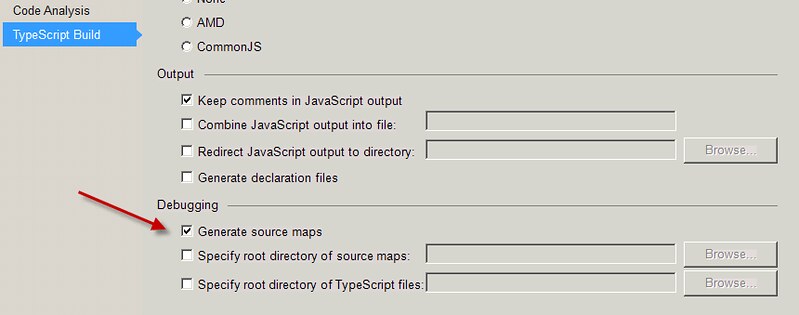
If you have been developing SharePoint hosted apps for a while then you may be using TypeScript or CoffeeScript to generate the JavaScript code. You can debug the generated JavaScript in the browser but it is hard to determine where in the TypeScript the error is occurring. Now with source mapping you can link the JavaScript to the TypeScript and step through the code. This makes it easier to figure out exactly where the code is breaking. Enhance your JavaScript debugging life. If you have included TypeScript in your Visual Studio project you can check to make sure you are generating the source map for the TypeScript using the project’s TypeScript Build settings.
SPFastDeploy makes it easy to step through TypeScript
SPFastDeploy has the feature to automatically deploy your code changes to a SharePoint app web when saving. This feature deploys the JavaScript that is generated when using TypeScript or CoffeeScript. However, in order to step through your TypeScript code you must also deploy the corresponding source map and TypeScript files. Version 3.6 now has the option to deploy all three files (JavaScript, source map and TypeScript) when saving. Just set the “Include source and source map” option to true.
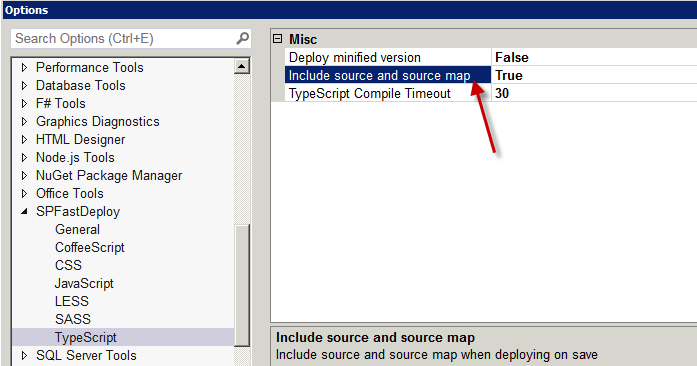
Now when you save your changes SPFastDeploy will wait for the TypeScript to compile and generate the JavaScript. It will then look for the corresponding source map and Typescript file and deploy all three files to the SharePoint App. 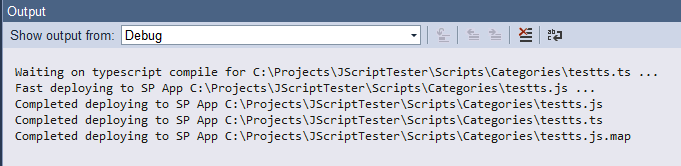
SPFastDeploy only supports deploying source maps files when it is located in the same directory as the source file. You can now refresh your browser making sure the cache is cleared and start stepping through your changes in TypeScript.

Increase your SharePoint development productivity with SPFastDeploy 3.6 and TypeScript
With this release you can now get the benefits of immediately deploying your code changes when saving and the ability to step through your TypeScript code. Previous versions did not support deploying source map and TypeScript files. Now one click can deploy all three. Also, this release will enable you to right click source map and TypeSript files in the solution explorer and deploy them to your SharePoint App site. Finally, remember all the support for TypeScript is available for CoffeeScript. Thanks to Mikael Svenson for asking for this feature.